
How to Add a Location
Steps
1. Add a Location
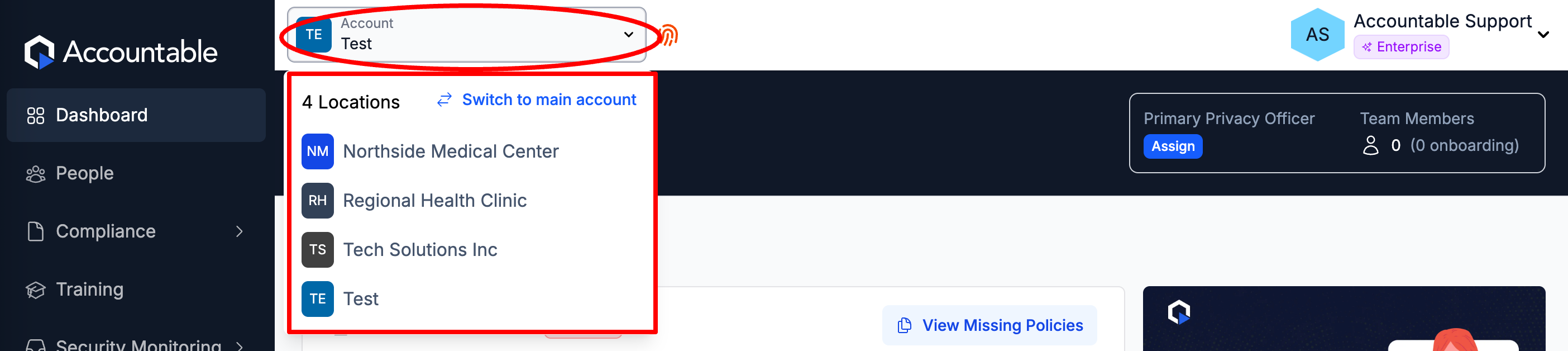
- In the top left corner Select your Account Name
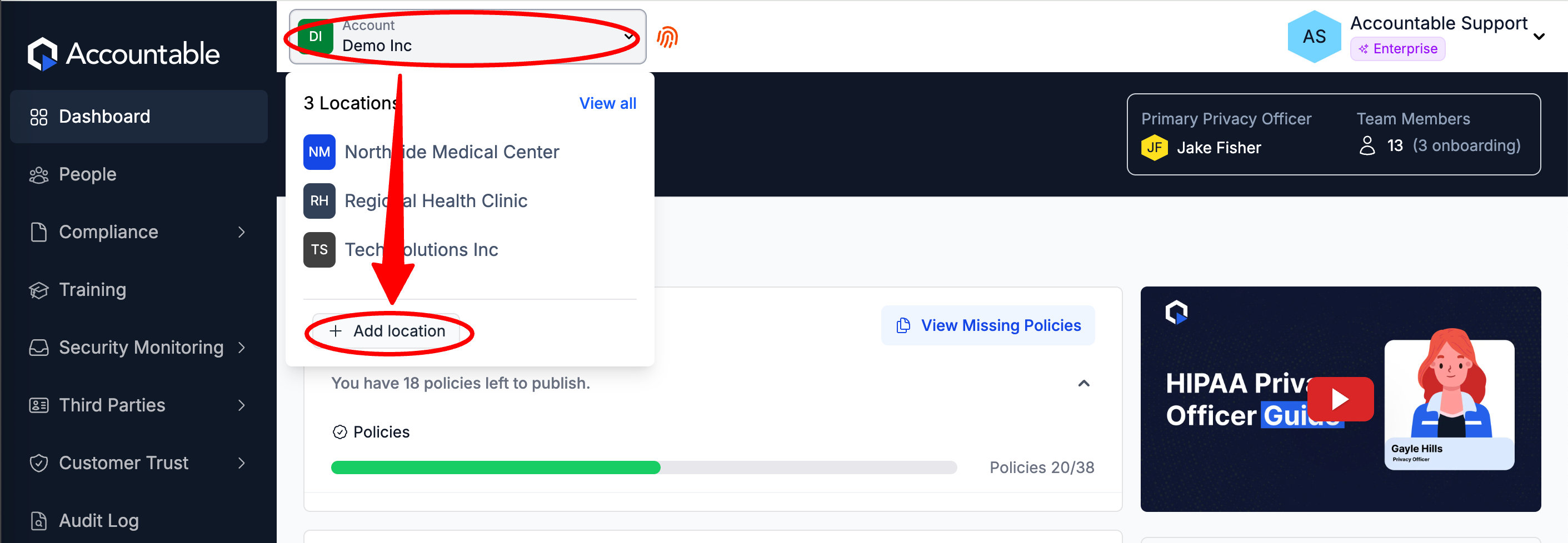
- OR, in the left sidebar Select Locations > Select Add Location
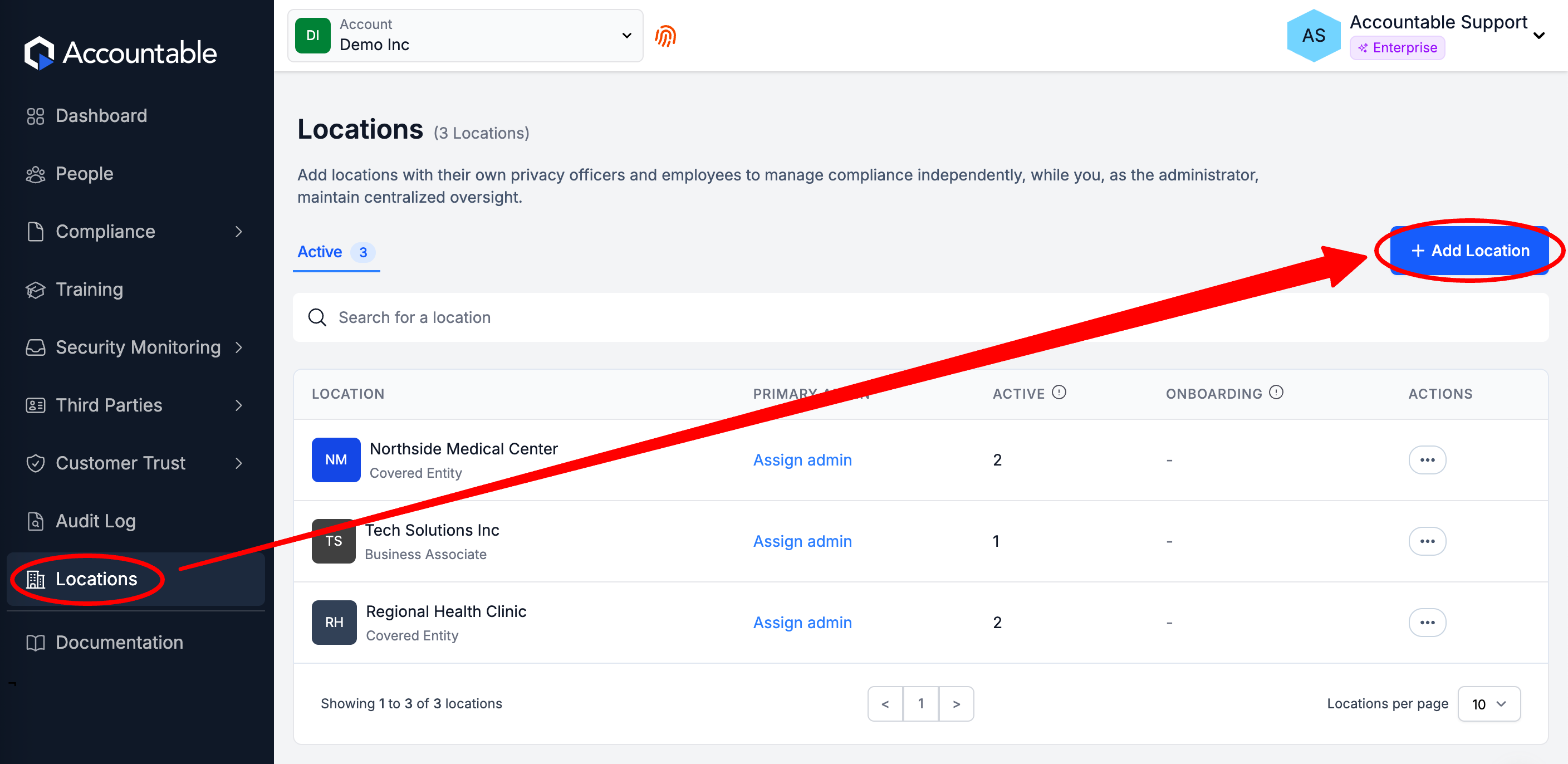
- Enter the following information for the Sub-Location > Select Create Location
- Name
- Website
- Account Type: Business Associate or Covered Entity
Congratulations! You created a Sub-Location!
All Admins in your Parent Location can see and navigate into Sub-Locations.
Sub-Locations users cannot see or navigate into their Parent Location.
2. Add the Sub-Location Admin
- In the top left corner Select your Account Name > Select your new Location
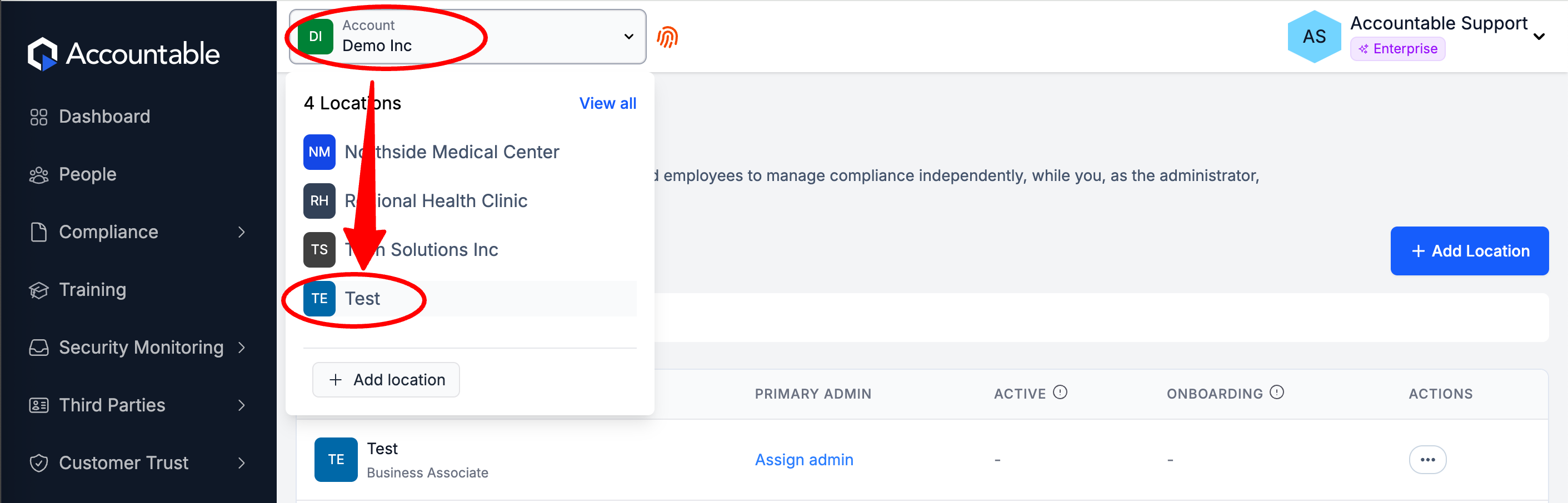
- Within the Sub-Location, Invite a User who will be this Location's Admin: Select People in the left sidebar

- Select Invite Team Member

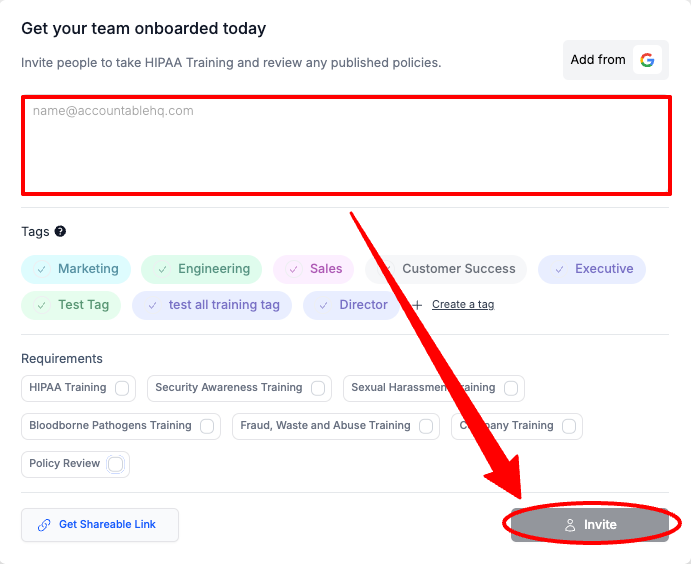
- Enter User Info (see breakdown below) > Select Invite
- Enter an Email Addresses or multiple in a comma separated list
- Optionally, individually Select Requirements
- Once they accept their invite, Select the Team Member
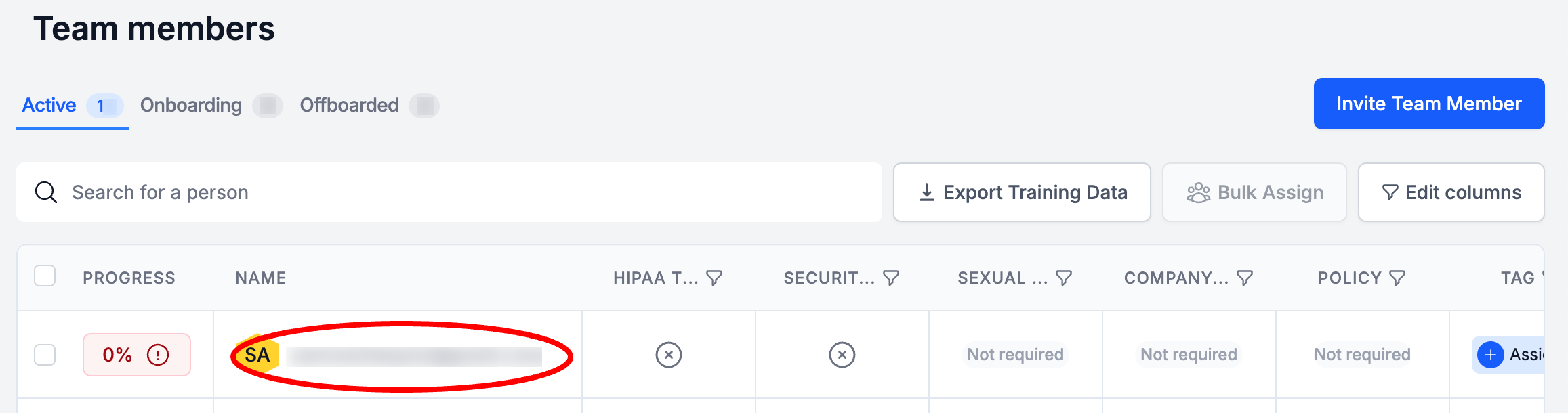
- Select Edit
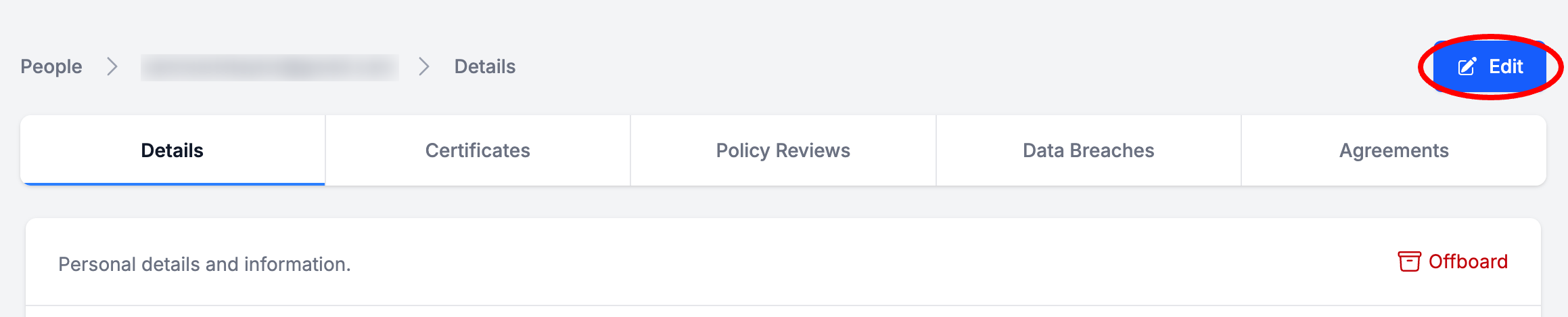
- Grant them the Privacy Officer Role > Select Update Team Member
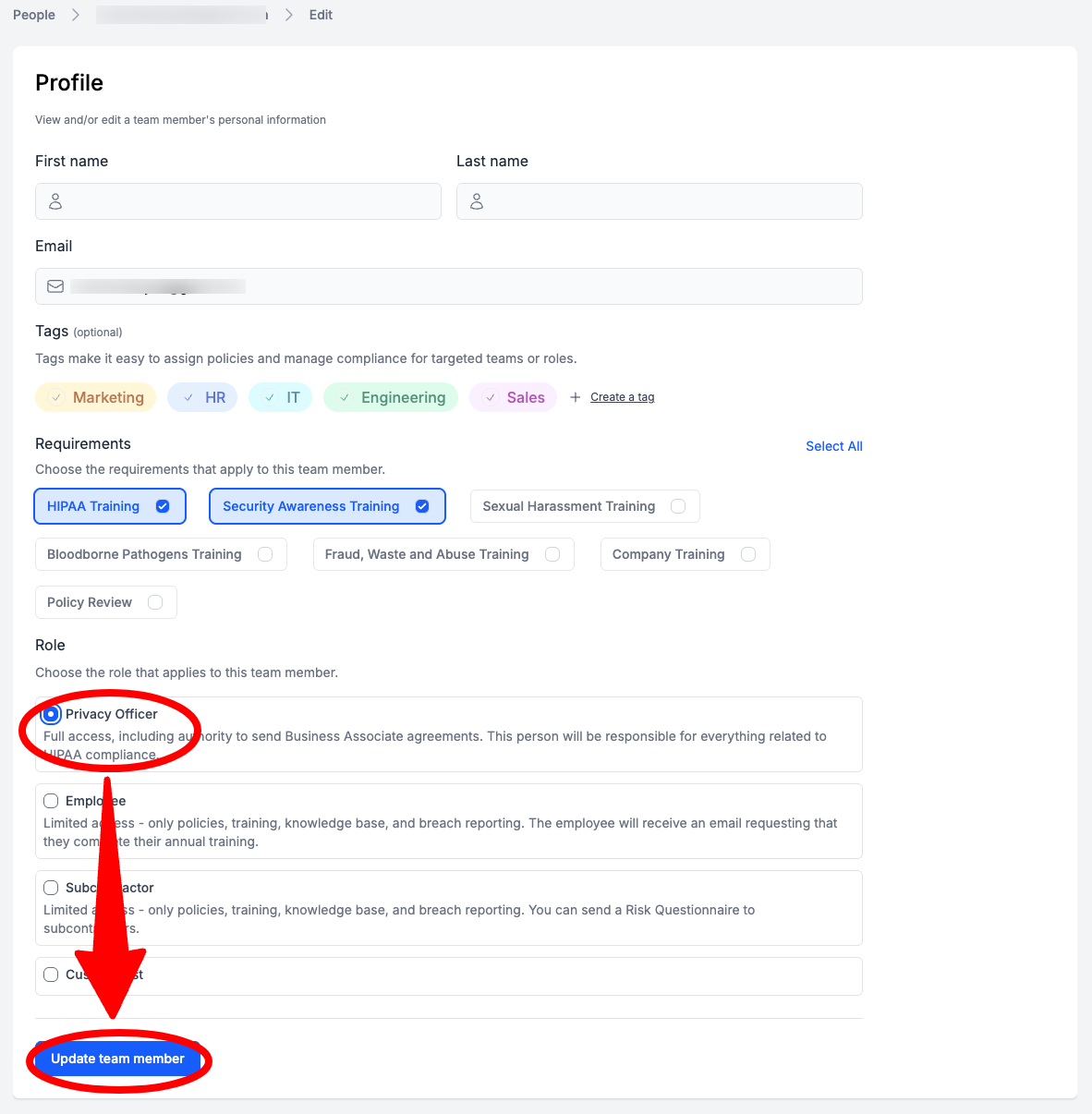
- Now grant them Admin Access: Select your Name in the top right corner > Select Settings

- Select the Admins tab > Select Add Admin
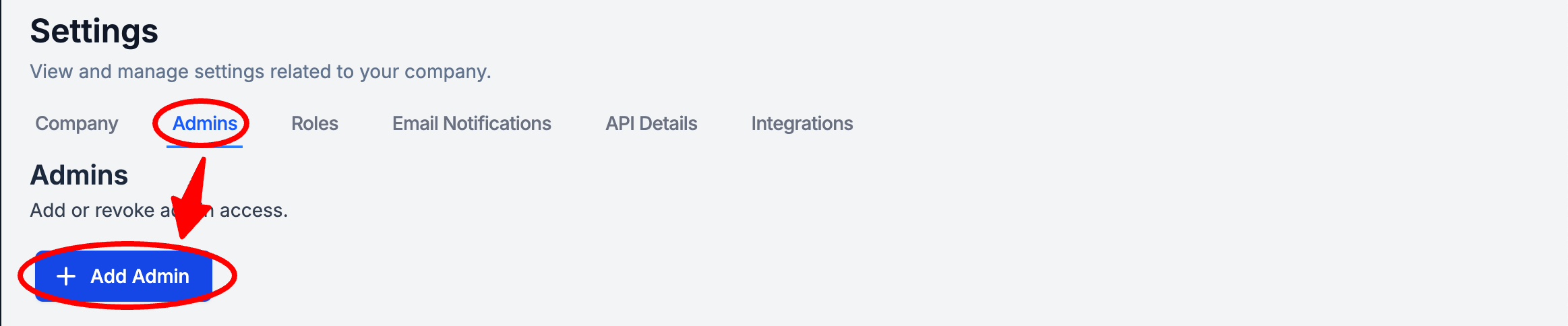
- Select the User from the drop down > Select Add as Admin
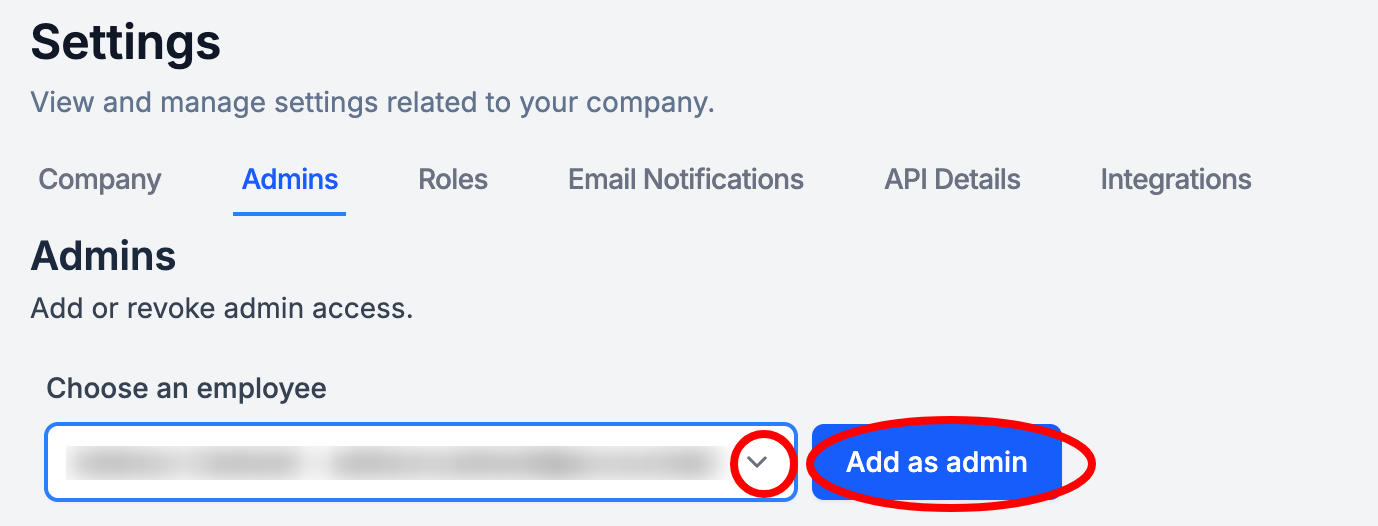
Congratulations! You Assigned your Sub-Location's Admin!
Switching Between Locations
- In the top left corner Select your Account Name > here you can Select Switch to Main Account or Select any other Sub-Location
3. Grant Sub-Location Access to Policies & Procedures
Optional: If you would like to manage your Sub-Location's Policies & Procedures, you can Grant your Sub-Locations access to them.
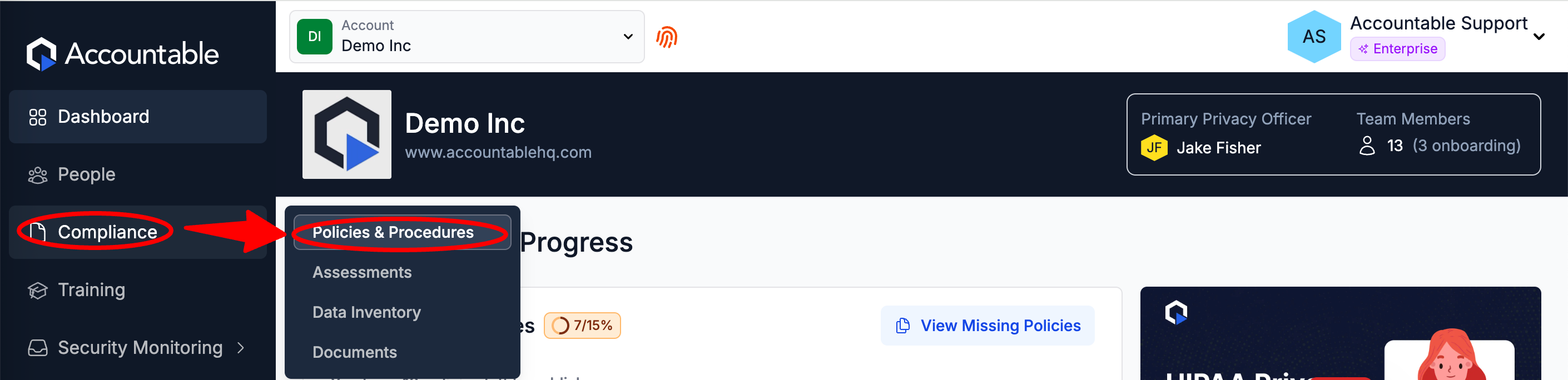
- From your Main Account, in the left sidebar Select Compliance > Select Policies & Procedures
- Next to the desired Policy or Procedure, Select the three dots Action Menu > Select Grant Subaccount Access
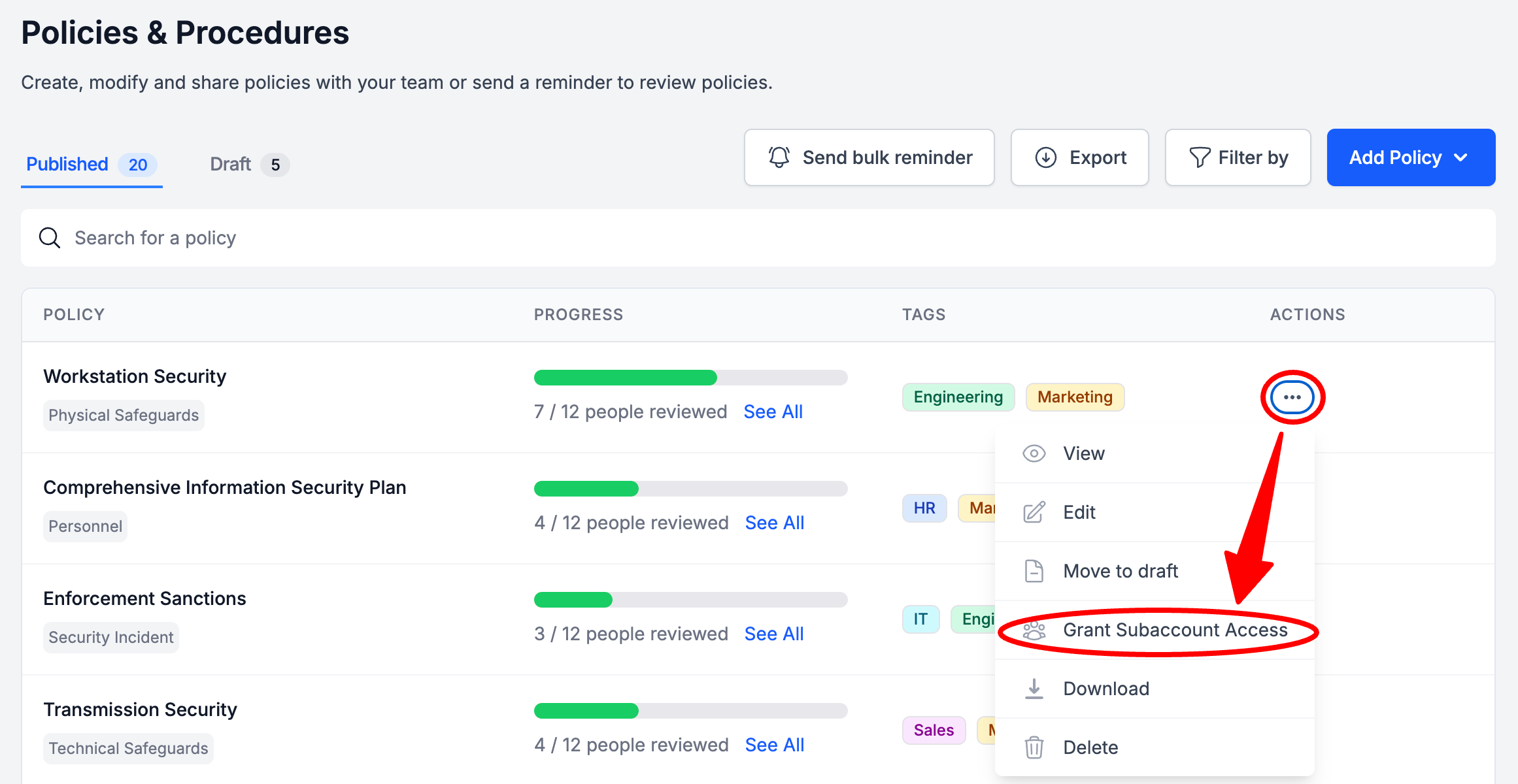
Once done, your Sub-Locations will see the Policy or Procedure in their Policies & Procedures section with your Account Name tag and any Smart Tags you had assigned it.
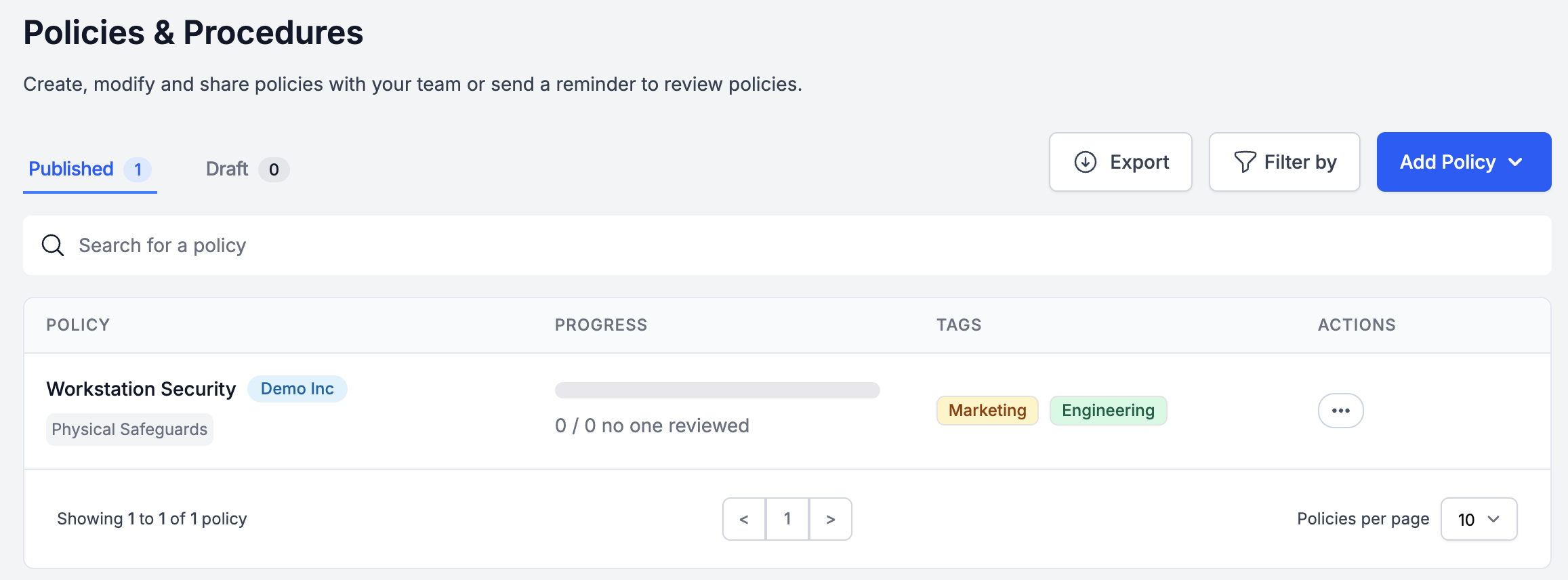
If the Policy or Procedure has a HIPAA Policy Type, then this will be pushed to the Sub-Locations, and they will get credit on their Dashboard and in their HIPAA Score for publishing a required Policy or Procedure.
Updated 7 months ago