
How to Send a BAA
Steps
1. Add a BA
A BA must already exist in Accountable to send them a BAA.
Please follow the steps in How to Add a BA, and then return to 2. Set up your Company Signatory
2. Set up your Company Signatory
Setting up your Company Signatory must be completed before setting up your BAA Template.
Please follow the steps in How to Set up your Company Signatory, and then return to 3. Set up your BAA Template
3. Set up your BAA Template
Setting up your BAA Template must be completed before sending a BAA.
If you do not have your own BAA template, we have one in our platform for you!
Note: Please review with your legal counsel.
Please follow the steps in How to Set up your BAA Template, and then return to 4. Send a BAA
4. Send a BAA
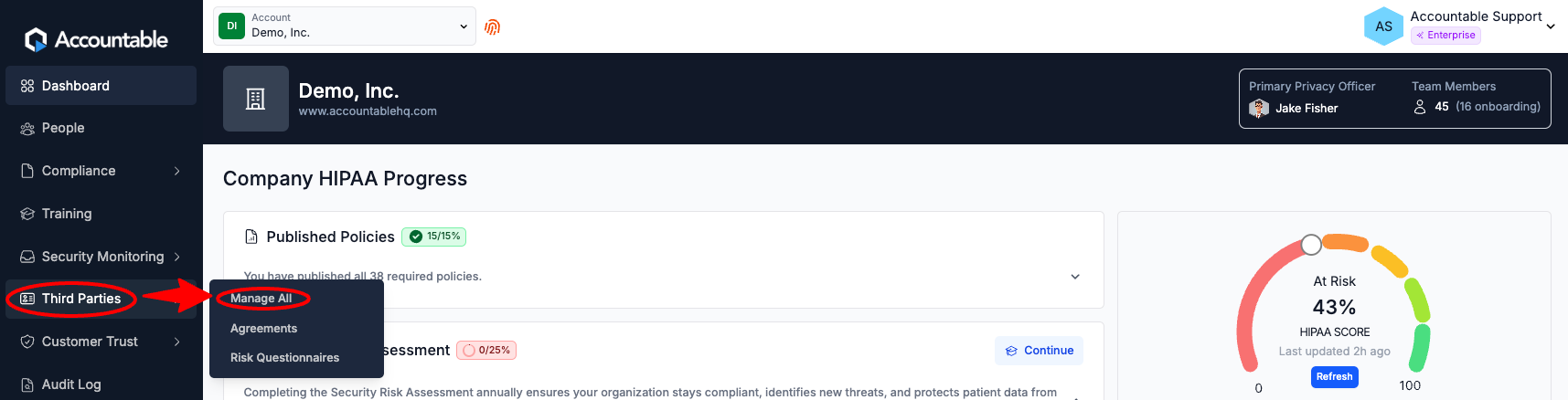
From the Dashboard, Hover over the Third Parties Section > Manage All
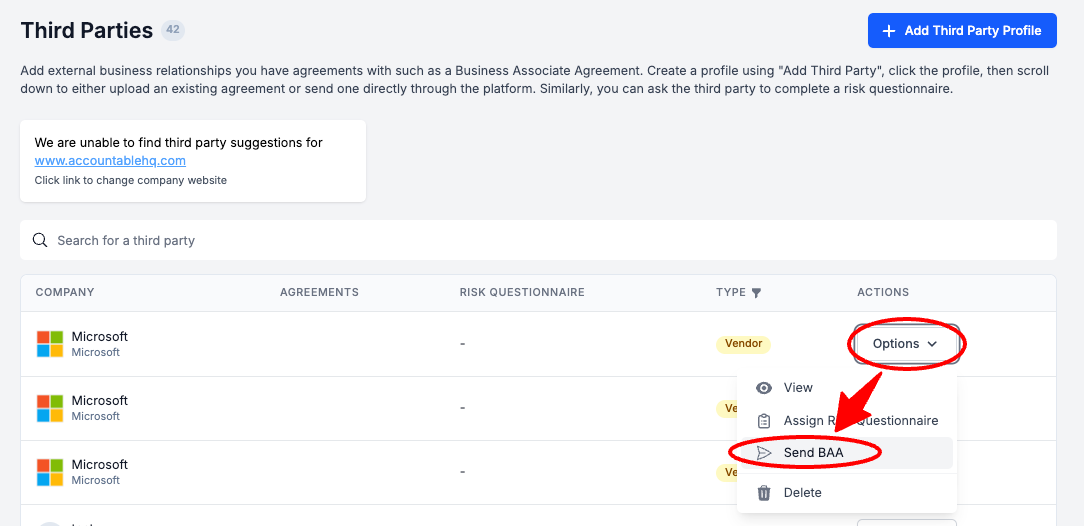
To the right of the BA that you would like to send a BAA to, in the Actions column Select Options > Select Send BAA
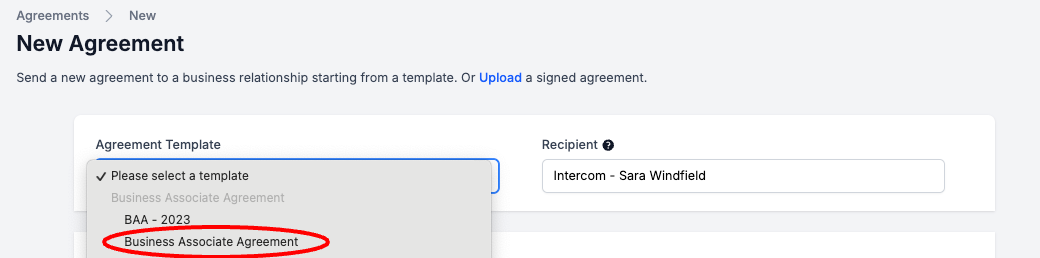
Select your Business Associate Agreement Template for your Agreement Template
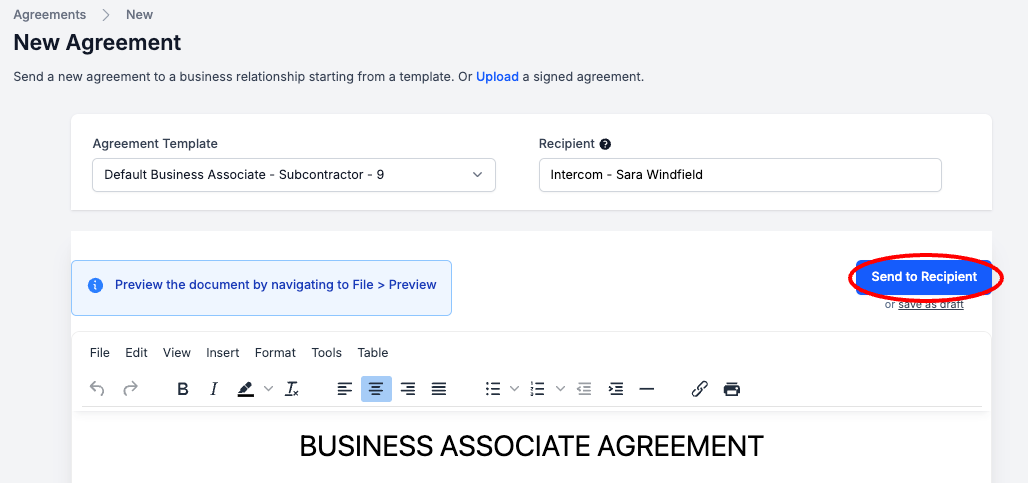
Review the Template > Select Send to Recipient
Congratulations! You are one step closer to being HIPAA compliant. Once your BA signs this BAA, your HIPAA score should move a little bit closer to 100%.
REMINDER: This is a recurring element of HIPAA Compliance. You need to send BAAs for signature to each of your BAs and receive and store those signed BAAs every 12 months.
Next Steps
Step 4: Create Policies & Procedures
Updated 8 months ago