
How to interact with Data Requests
When a user makes a request within your Privacy Center, it will create a Data Request in our platform.
If you have not already setup your Accountable Privacy Center, learn how to here!
Steps
How to Find a Data Request(s)
From the Dashboard, Select Customer Trust in the left sidebar > Select Data Requests
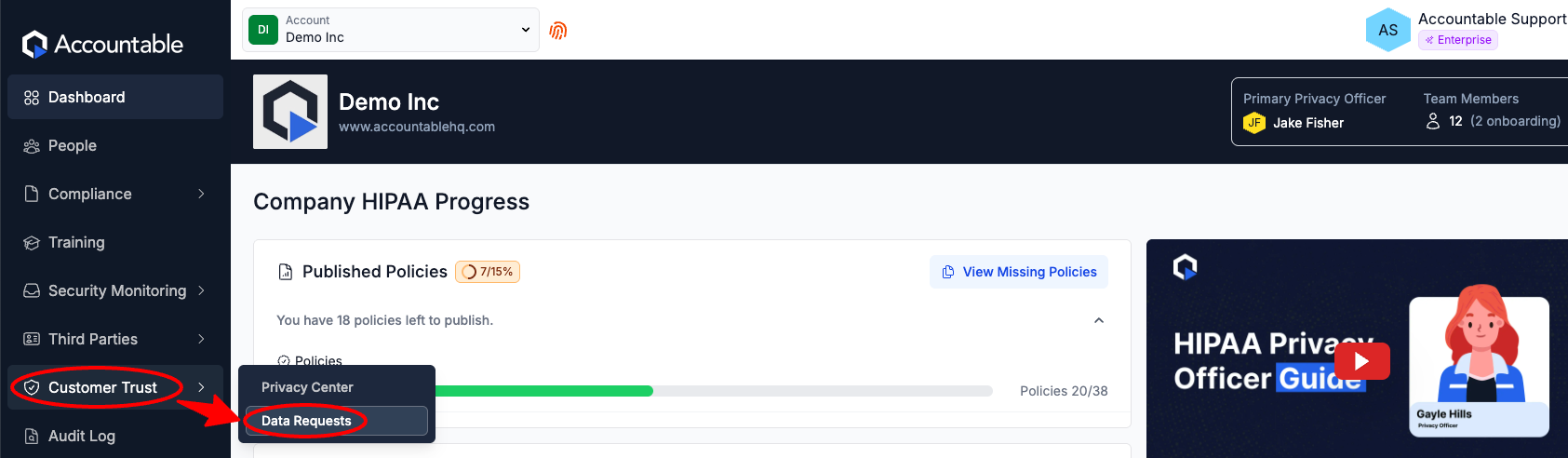
Here you'll find all past and current user Data Requests.
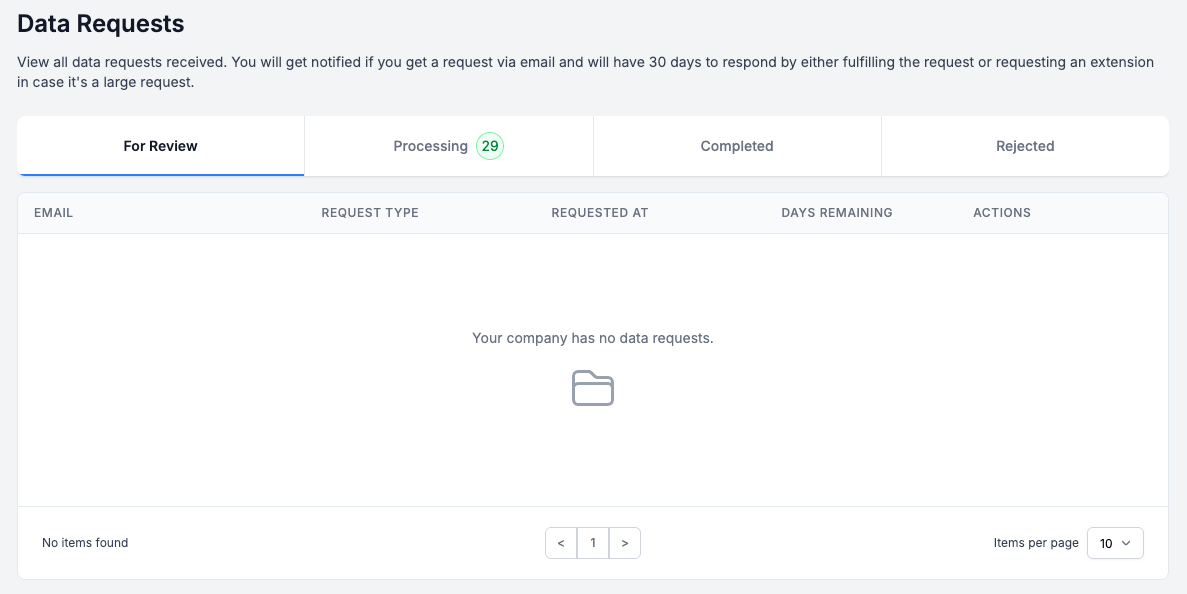
How to Review a Data Request
To Review or Reject Data Requests, Select Review or Reject
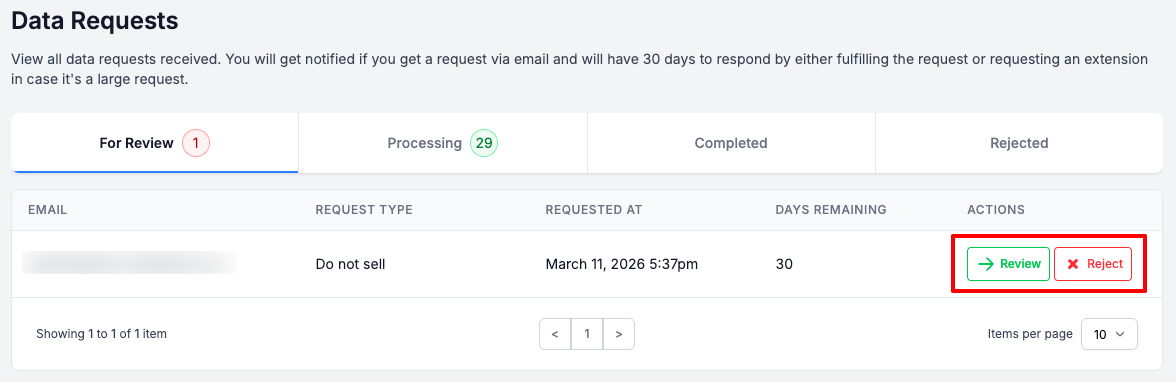
If you selected Review, you will be able to review the Data Request information:
- Data Requestor
- Request Type
- Details
- Active Data Processing Source
- Data Requested
- Days Left to Respond
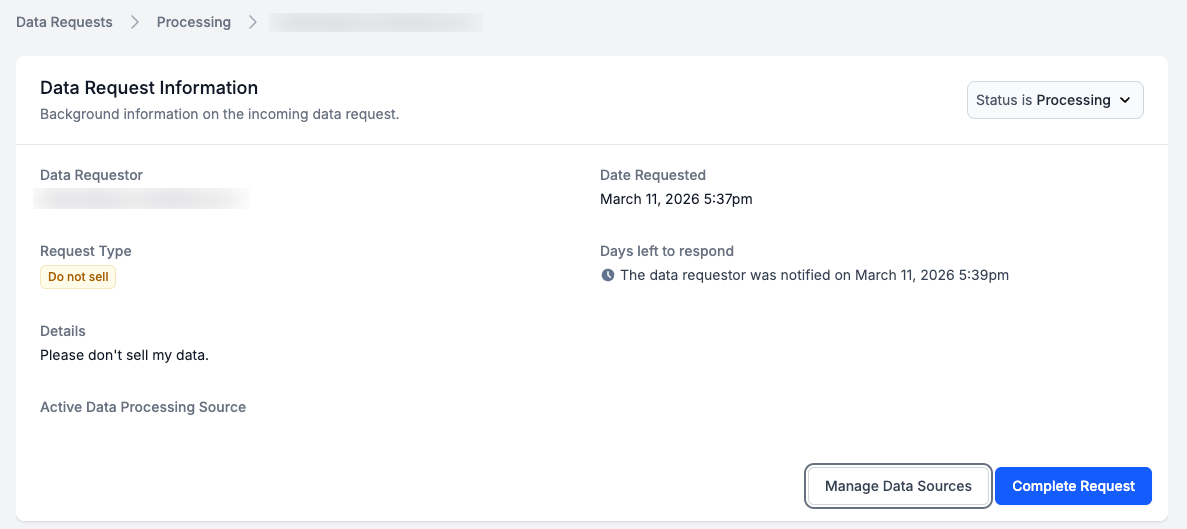
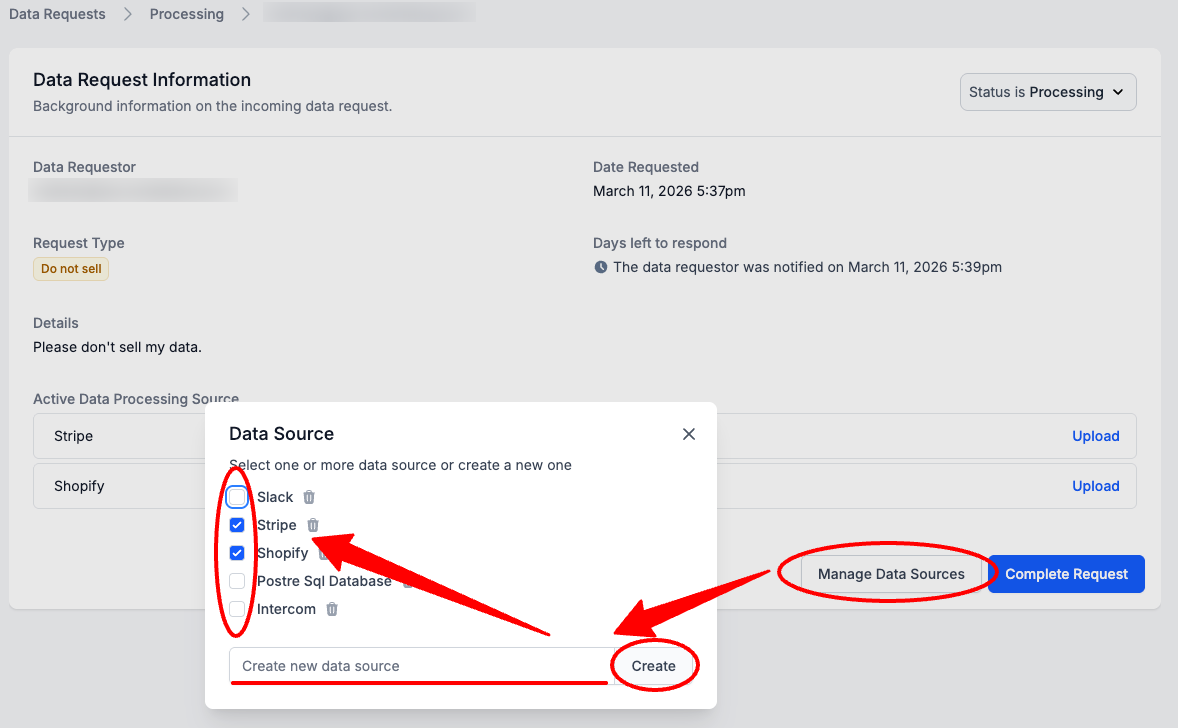
To associate Data Sources to this request, Select Manage Data Sources > optionally, Create a New Data Source (Enter the Name > Select Create) > Select one or more Data Sources
This step is required for Download Data Requests.
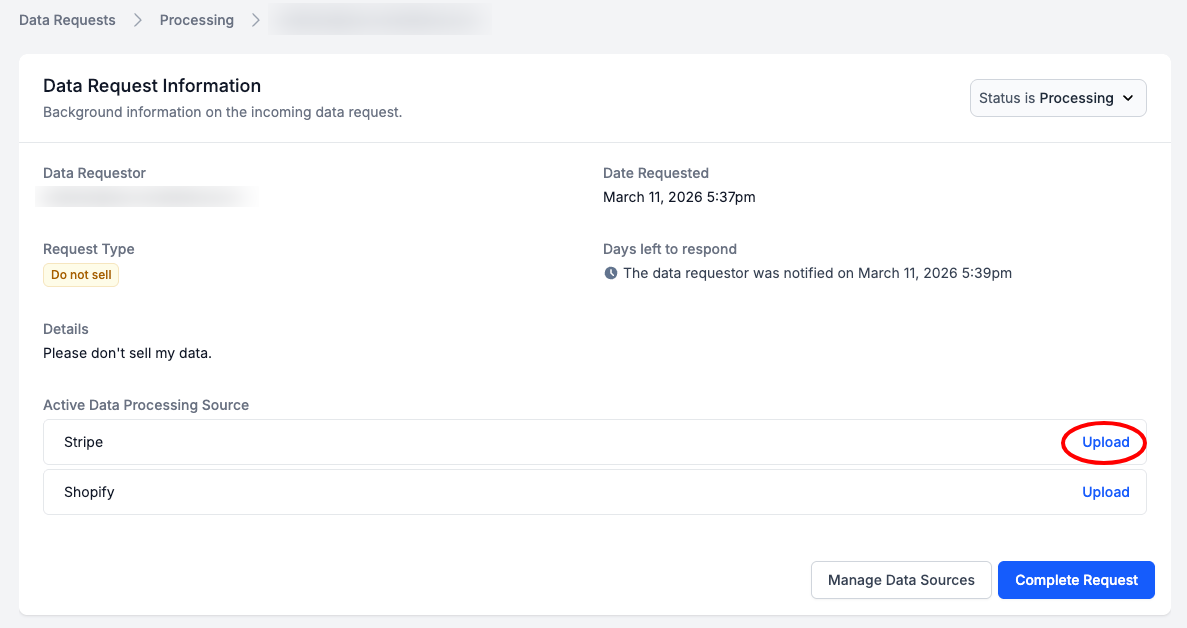
To upload user's data for each Data Processing Source, Select Upload
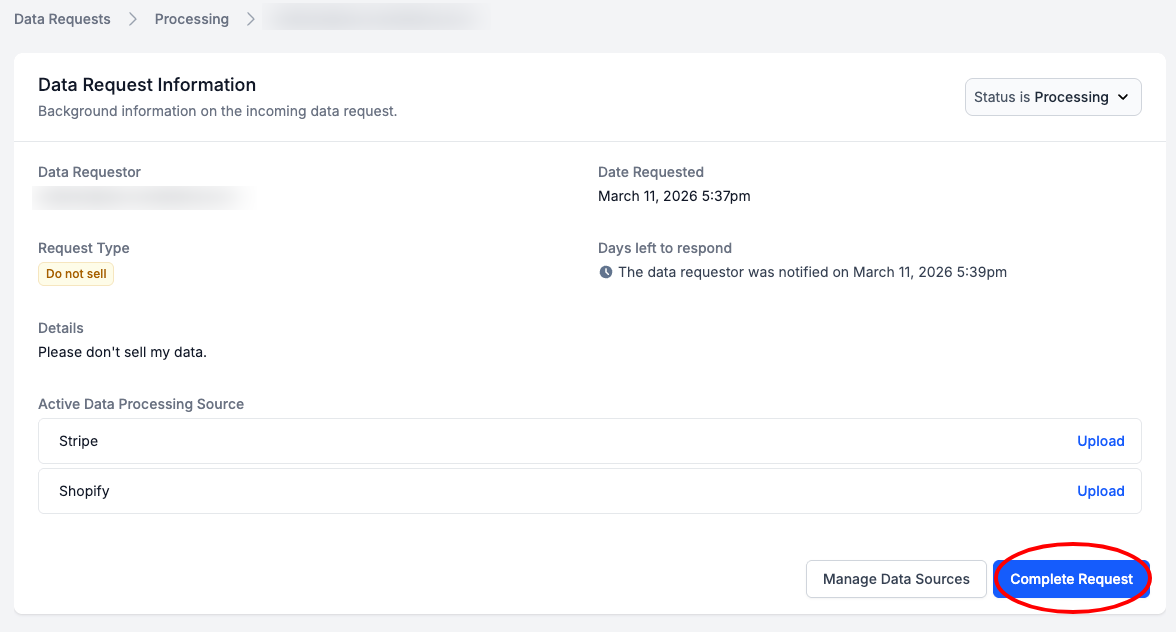
Once you have completed the Data Request, Select Complete Request
Action outside of Accountable Needed: If the user request type was Delete Data or Do not Sell Data, you will need to ensure this is taken care outside of the Accountable platform. Once taken care of, you can Complete the Request.
Updated 6 months ago