
How to Review Incidents
Steps
How to Review an Incident
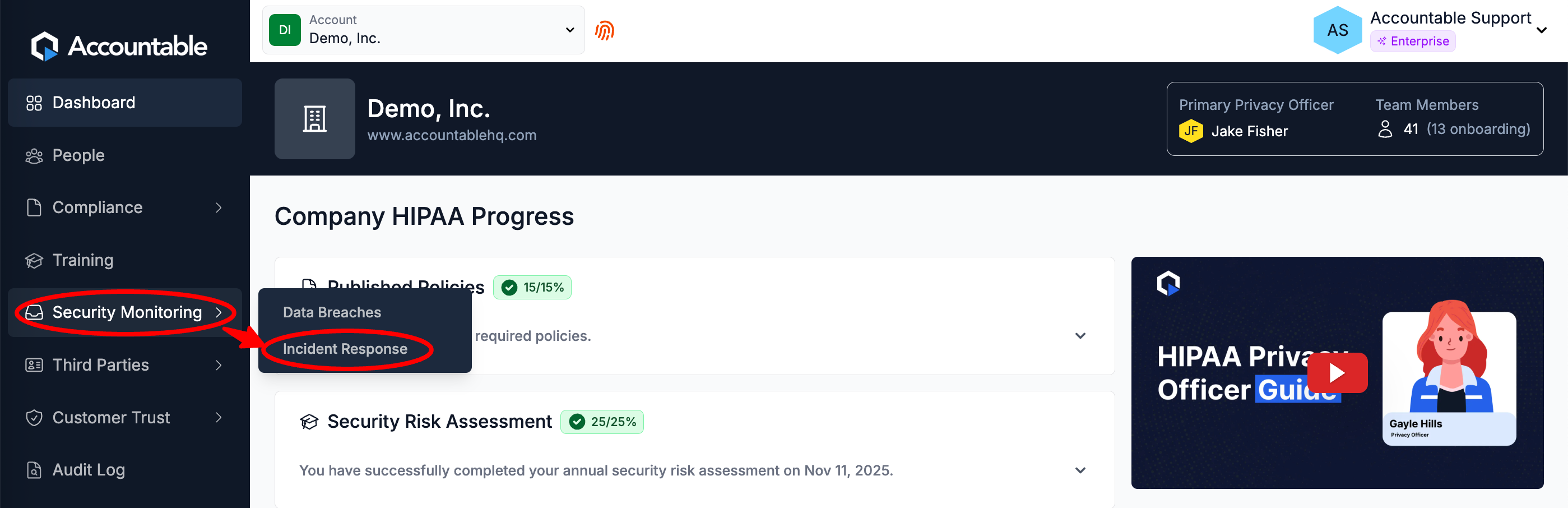
From the Dashboard, Select Security Monitoring > Incident Response in the left sidebar
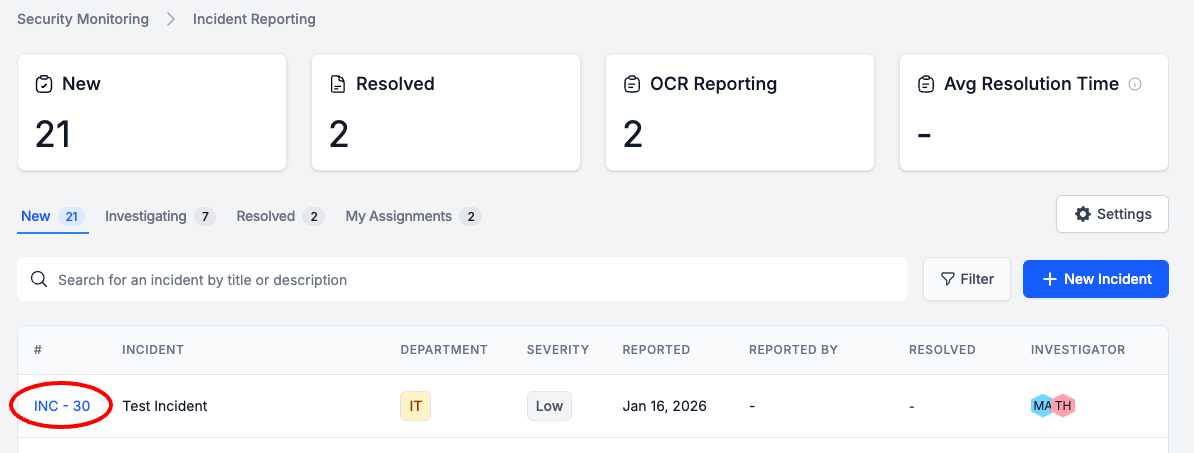
In the # Column, Select an Incident
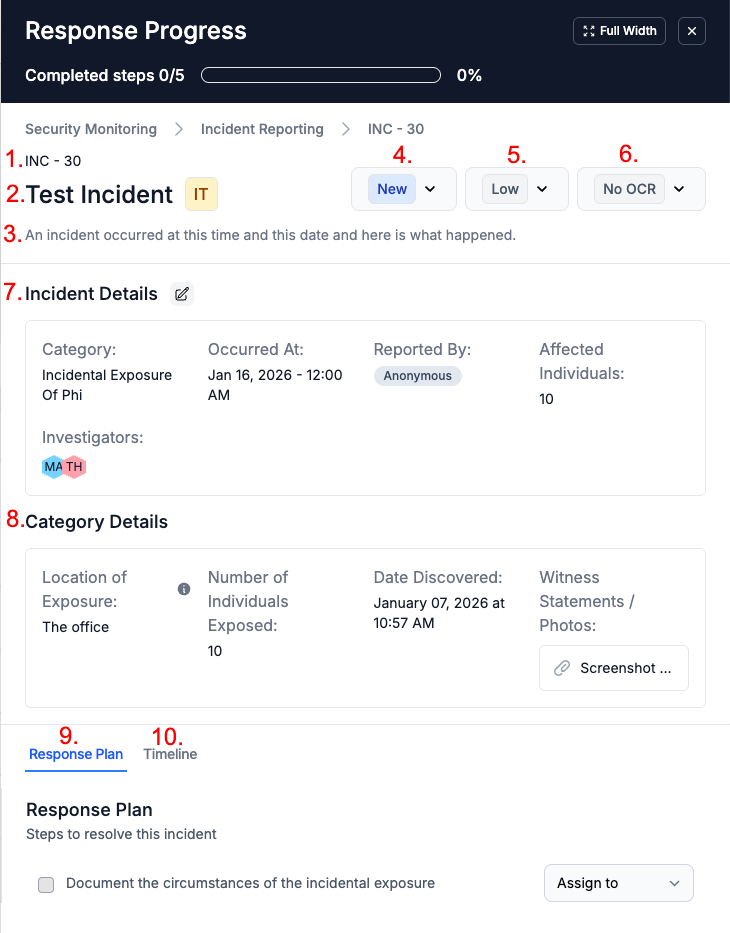
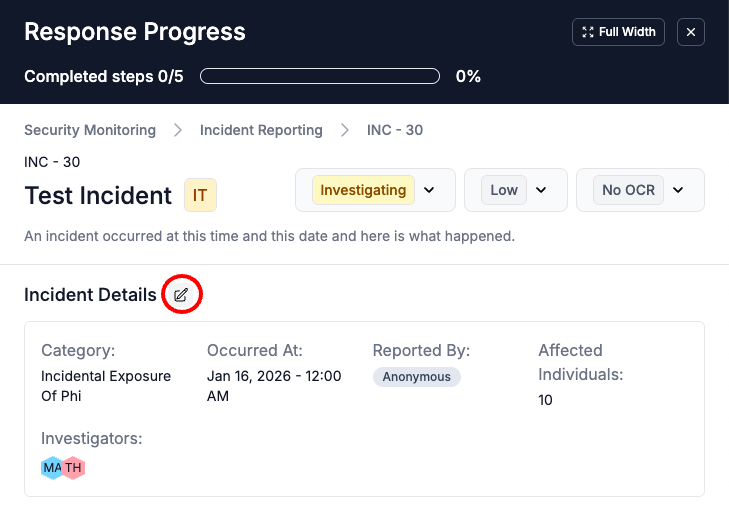
Here, you can review the Incident...
- ID
- Name
- Description
- Status
- Severity Level
- OCR Reporting Status
- Details
- Category Details
- Response Plan
- Timeline
The Timeline is a detailed Audit Log dedicated specifically to this Incident.
How to Update an Incident
Assign a Status, Severity Level, and OCR Reporting Status
From the Dashboard, Select Security Monitoring > Incident Response in the left sidebar
In the # Column, Select an Incident
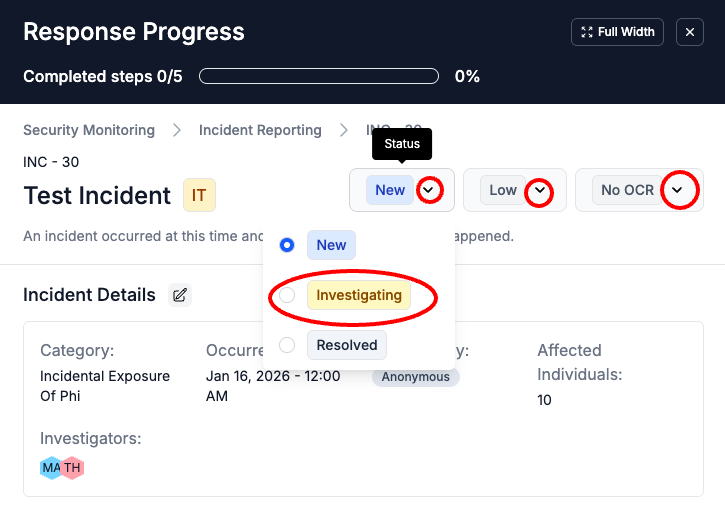
Select the Drop Down Arrow next to Status, Severity Level, and/or OCR Reporting Required > Select a new Status/Level
Options:
- Status
- New
- Investigating
- Resolved
If you change the Incident Status, the Incident will move under the corresponding Incident Status tab on the Incident Response Dashboard.
- Severity Level
- Low
- Mid
- High
- OCR Reporting Required
- OCR
- No OCR
Update the Incident Details
From the Dashboard, Select Security Monitoring > Incident Response in the left sidebar
In the # Column, Select an Incident
In the Incident Details section, Select the Pencil Icon
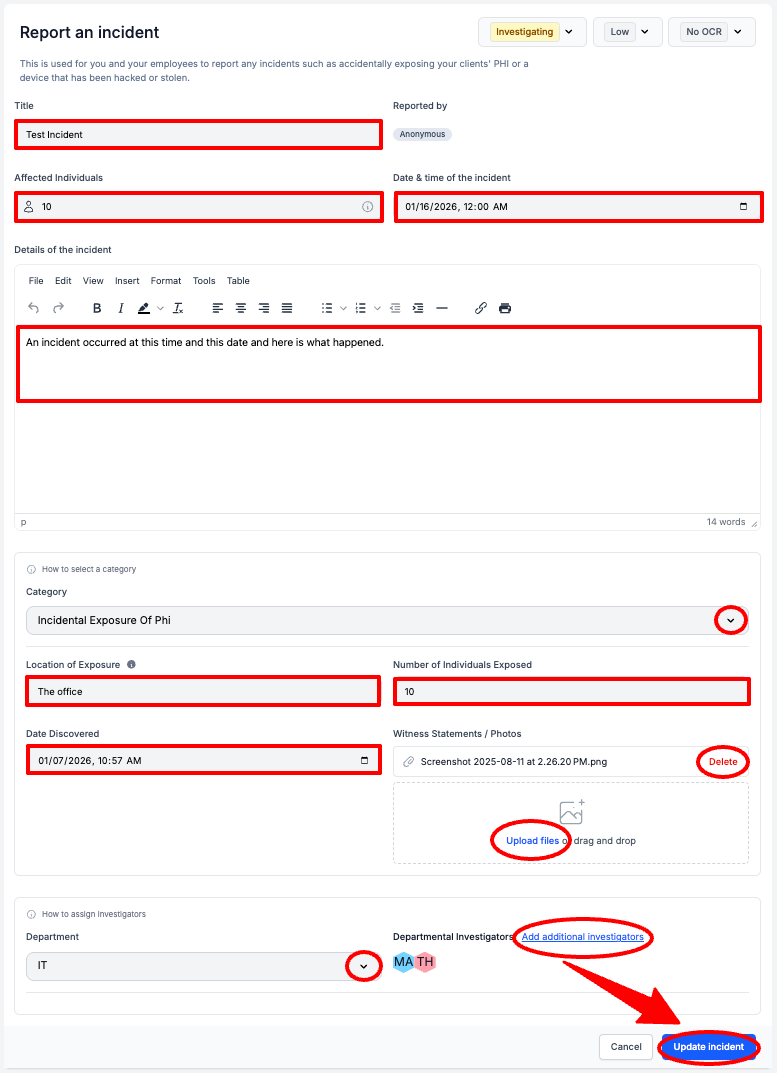
Edit the Incident > Select Update Incident
Here you can edit the Incident...
- Title
- Affected Individuals Count
- Date & Time
- Details
- Category
- All Custom fields associated with the Incident Categor
If you change the Incident Category, you will lose all data in the existing Incident Category Details section.
- Department
- Investigators
Update the Response Plan
This updates the Response Plan for this Incident. You can learn how to update the Response Plan for all Incidents of this Category in our How to Manage Incident Categories Documentation.
From the Dashboard, Select Security Monitoring > Incident Response in the left sidebar
In the # Column, Select an Incident
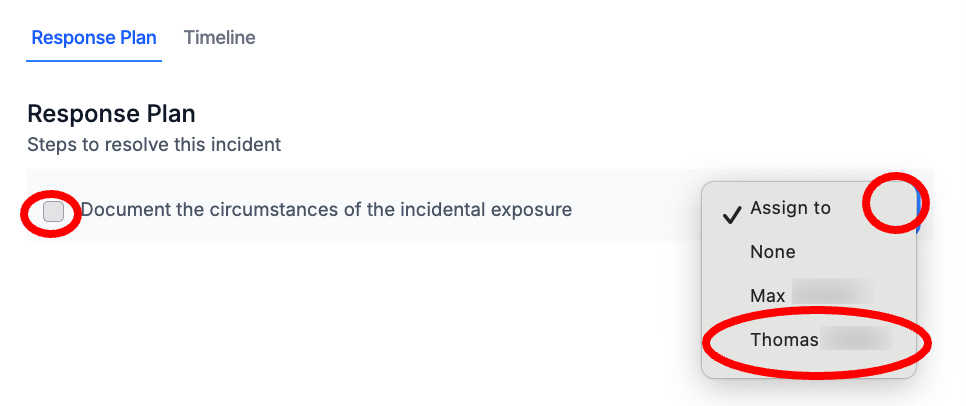
In the Response Plan Tab and Section, you can...
- Select Assign To to assign steps to Assign steps to Team Members
- Select the Checkbox once a step is complete
Updated 8 months ago