
Send Data Processing Agreements (DPAs)
Steps
- Add a Third Party
- Add your DPA Template
- How to Upload an Existing DPA
- How to Send a DPA
1. Add a Third Party
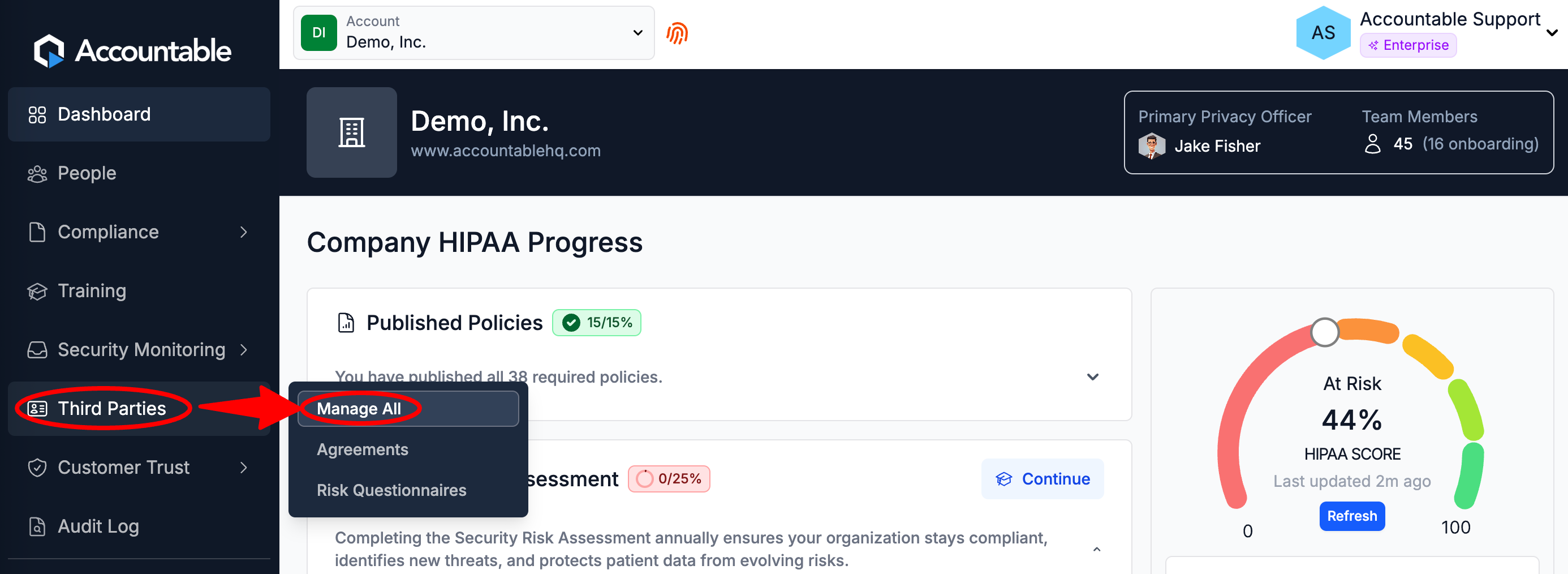
From the Dashboard, hover over the Third Parties tab > Select Manage All
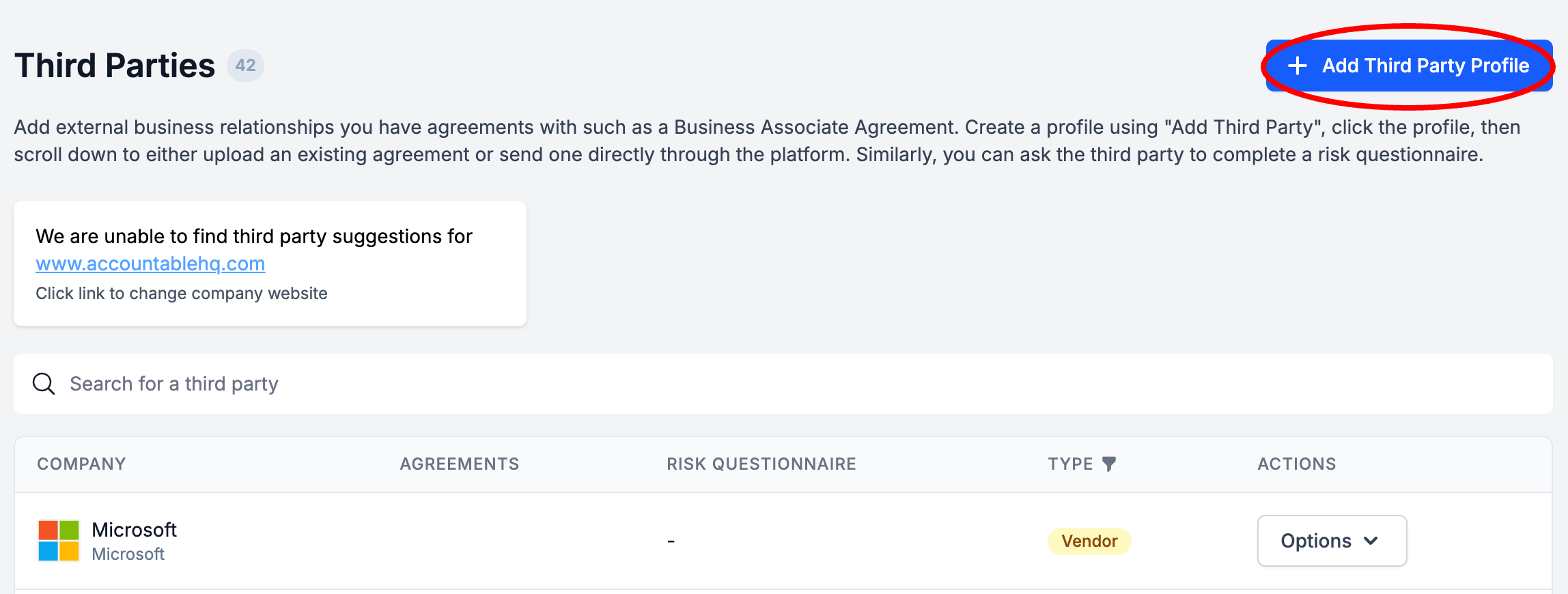
Select Add Third Party Profile
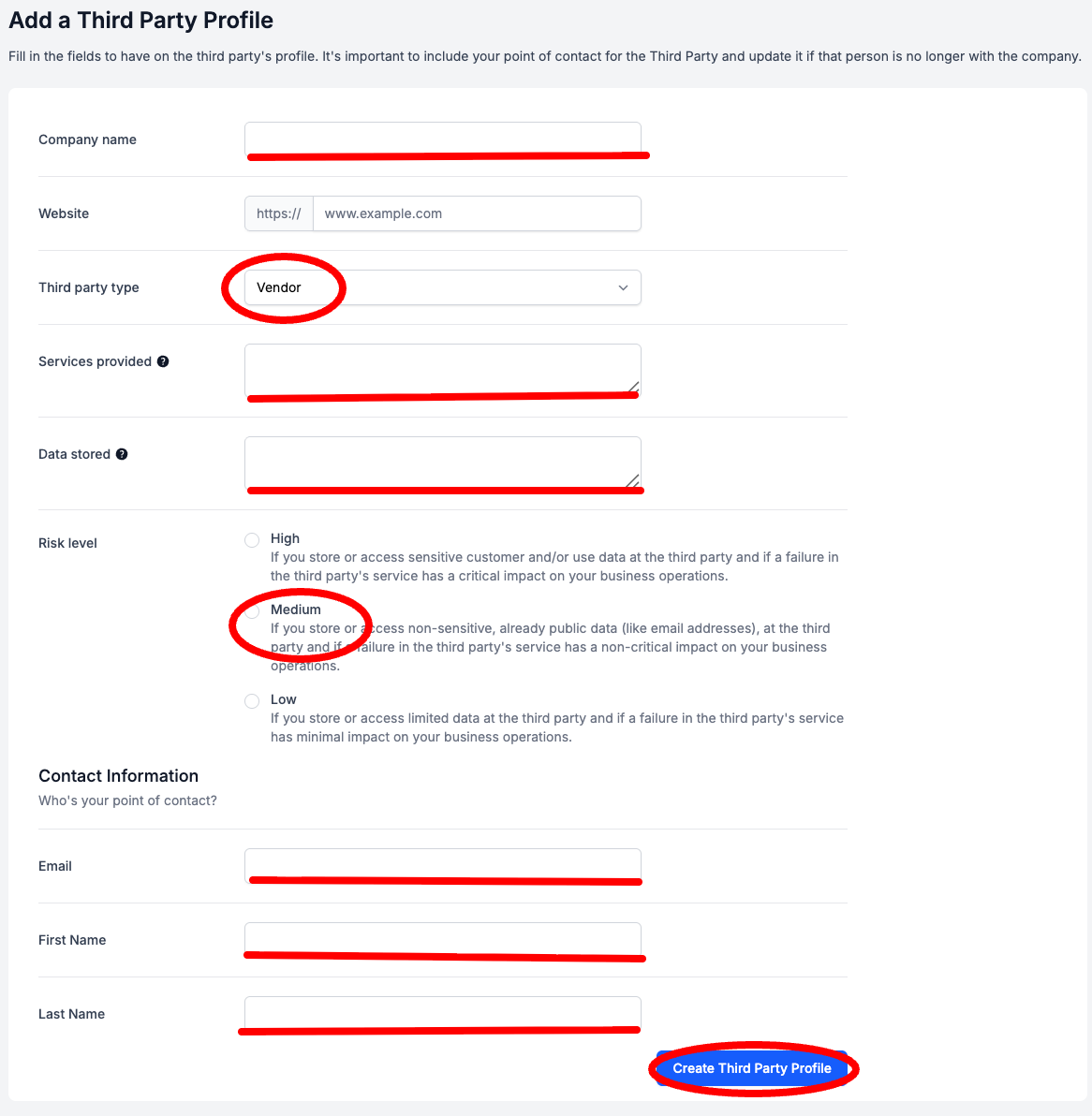
Enter Vendor Info (see breakdown below) > Select Create Third Party Profile
The purpose of documenting information about your Third Parties is to document what parties you work with, and what information they have access to. In the event of a data breach, this will help you quickly and specifically identify the depth and breadth of the issue to ensure that you respond appropriately.
- Enter the Company Name of the Third Party
- Optionally, enter their website
- Select their Third Party Type: Vendor, Partner, or Client
- Enter a brief description of the Service Provided
- Vendor: Services provided to you by them
- Partner: Services provided to each other
- Client: Services provided by you to them
- Enter the Data Stored in a comma separated list
- List out the specific Personal Data being shared with this Vendor
-
Personal Data Definition under GDPR. "Personal data are any information which are related to an identified or identifiable natural person."
-
- List out the specific Personal Data being shared with this Vendor
- Select the Risk Level: High, Medium, or Low
- Enter the Contact Information for the person who will sign future DPAs for this organization. Enter their...
- First Name
- Last Name
Add your DPA Template
Steps
- Setup your Company Signatory
- Add DPA Template
Setup your Company Signatory
Setting up your Company Signatory must be completed before setting up your DPA Template.
Please follow the steps in How to Setup your Company Signatory, and then return to Setup your DPA Template
Setup your DPA Template
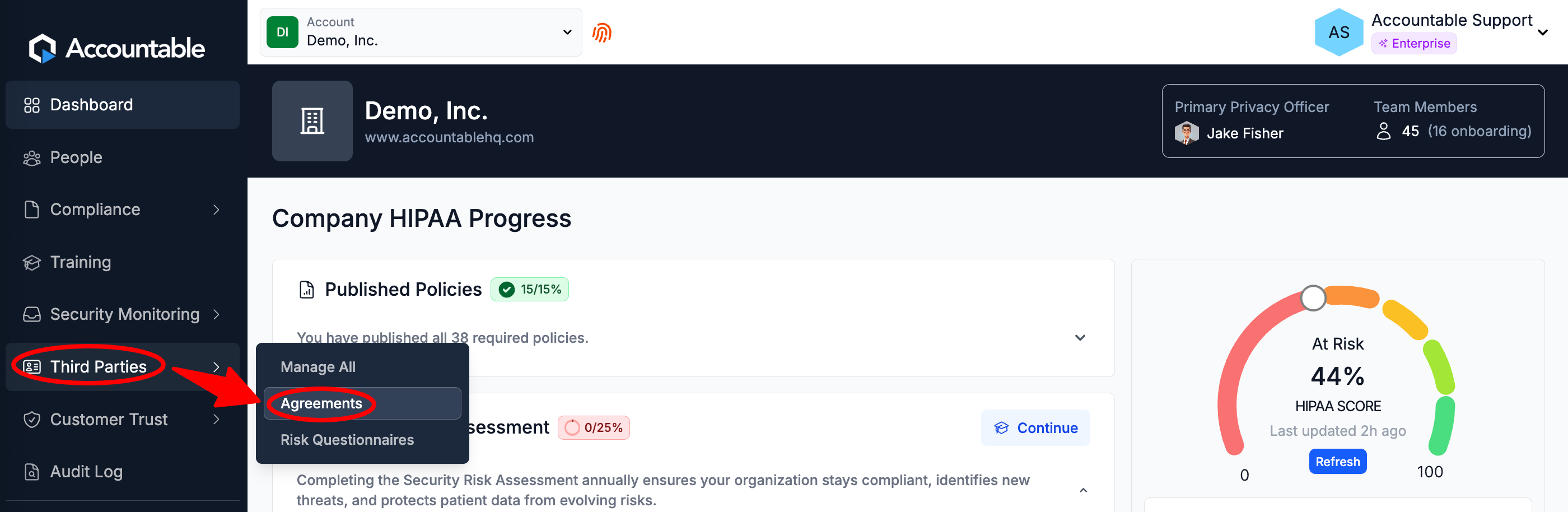
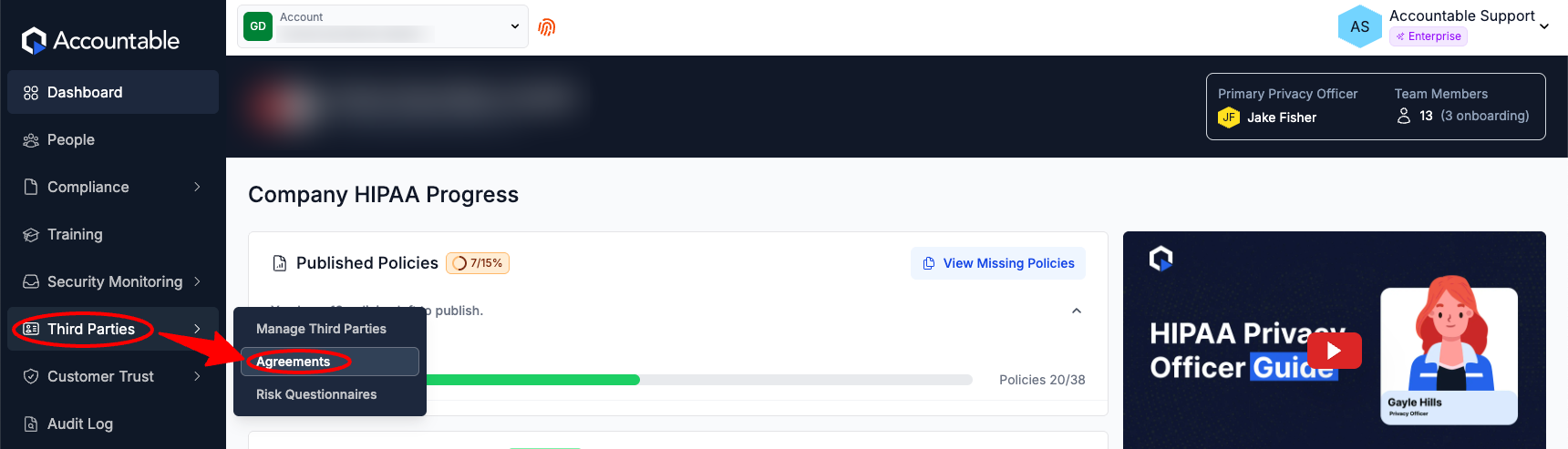
From the Dashboard, Hover over the Third Parties Section > Select Agreements
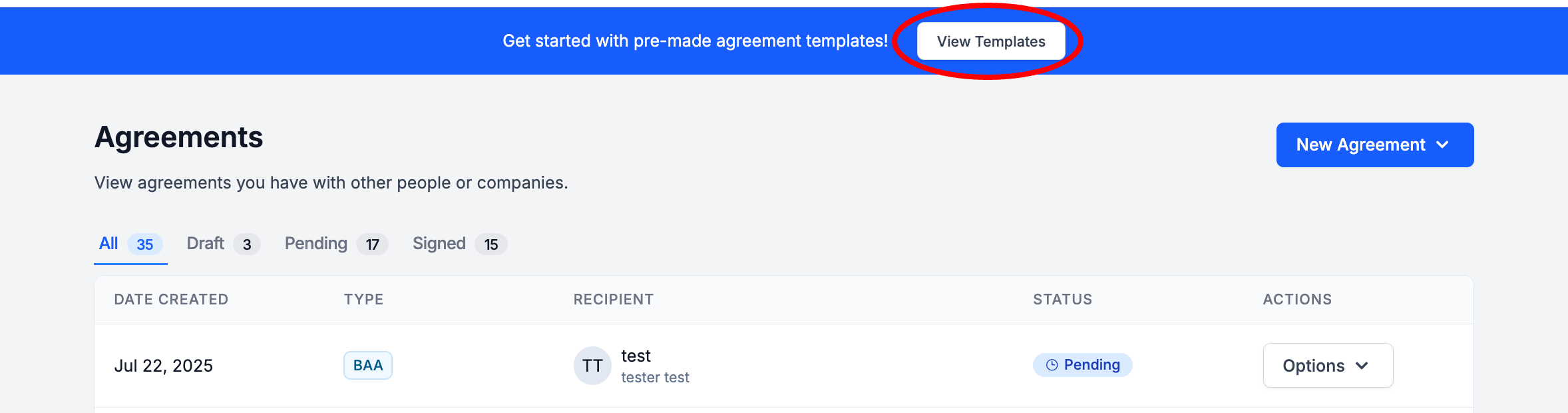
In the top banner, Select View Templates
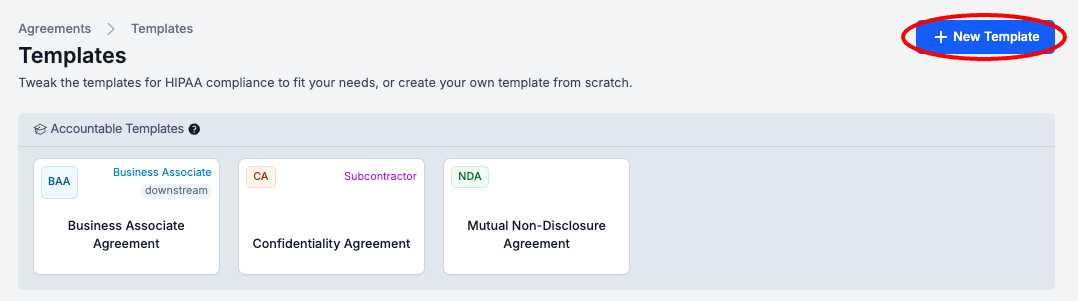
Select New Template
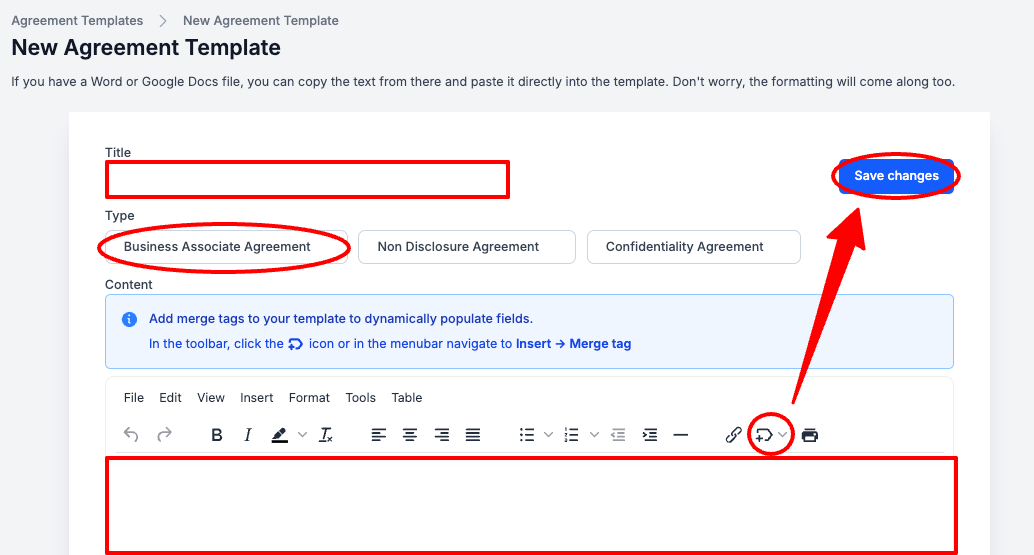
Enter Template Info (see below for breakdown) > Select Save Changes
- Enter a Title
- Select Business Associate Agreement as the Type
-
Accountable currently doesn't have a Agreement Type called Data Processing Agreement, so Business Associate Agreement must be selected as a work around. This will not create any issues, as the Name of your Template is DPA and the content of your Template will be your DPA.
- Enter the text of the Template
- Use the Insert Merge Tag Button to Insert Merge Tags for Effective Date, Originator, and Recipient into your Template
Congratulations! You can now Send DPAs through Accountable.
How to Upload an Existing DPA
SKIP this step if... you do not have any signed DPAs to upload.
Steps
- Add a Third Party Profile
- Upload DPA to Third Party Profile
Retrieving DPAs from 3rd Party Software Vendors
Add a Third Party Profile
If you have already added a Third Party Profile for the DPA for which you have a signed DPA that you'd like to upload, you can skip this step!
Follow the How to Add a Third Party documentation, then come back to this page for Step 2.
Upload DPA to Third Party Profile
Attaining signed DPAs from your Third Parties is an annual requirement under GDPR.
You can upload historical DPAs to Accountable in order to keep your documentation in one place, however if the DPA you uploaded's Effective Date is more than 12 months ago, then you will also need to retrieve a new DPA to meet GDPR compliance standards.
Large Third Parties, such as software companies like Microsoft, Google, AWS, etc., will not sign and/or update their pre-signed DPA every year. This is known, and is an exception to this annual requirement.
From your Dashboard, Navigate to the Third Parties tab > Select Agreements
Select New Agreement > Select Upload
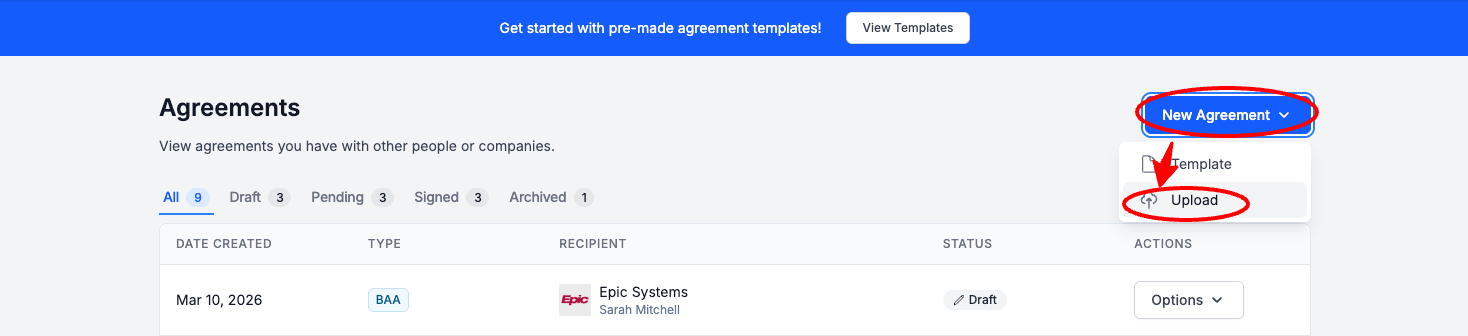
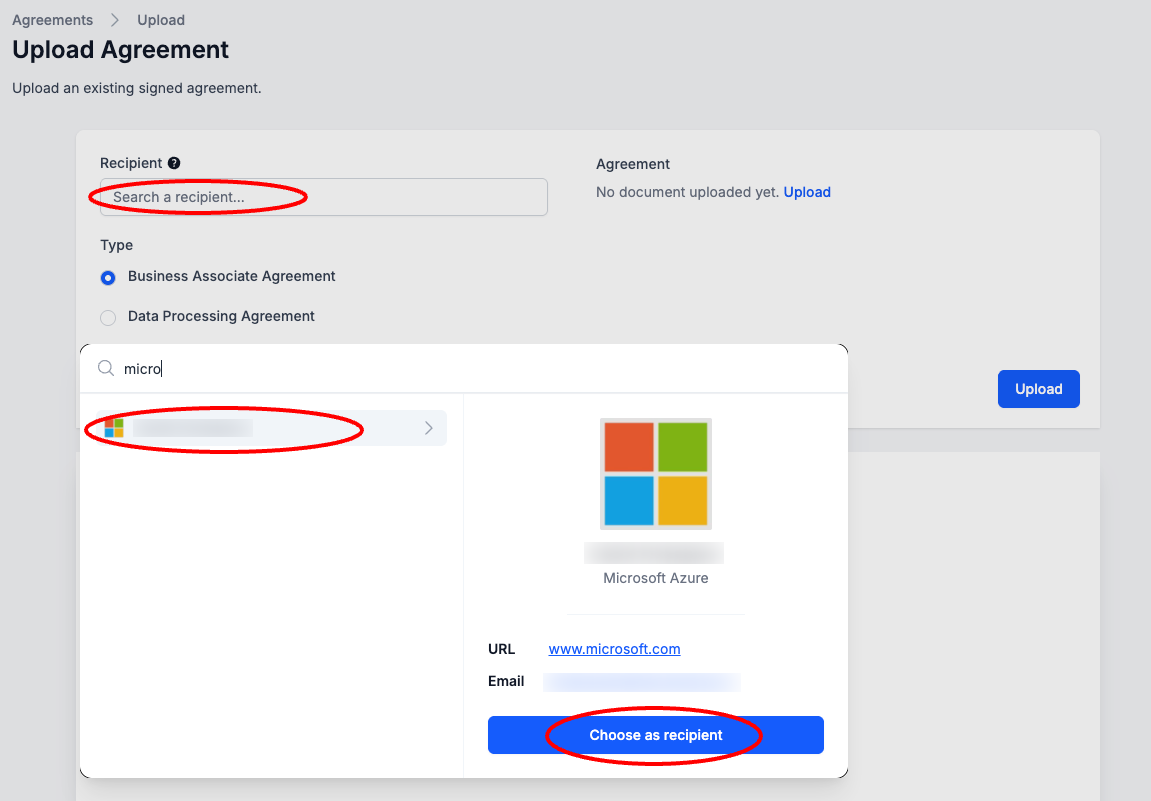
Select Search a Recipient > Select a Recipient > Select Choose as Recipient
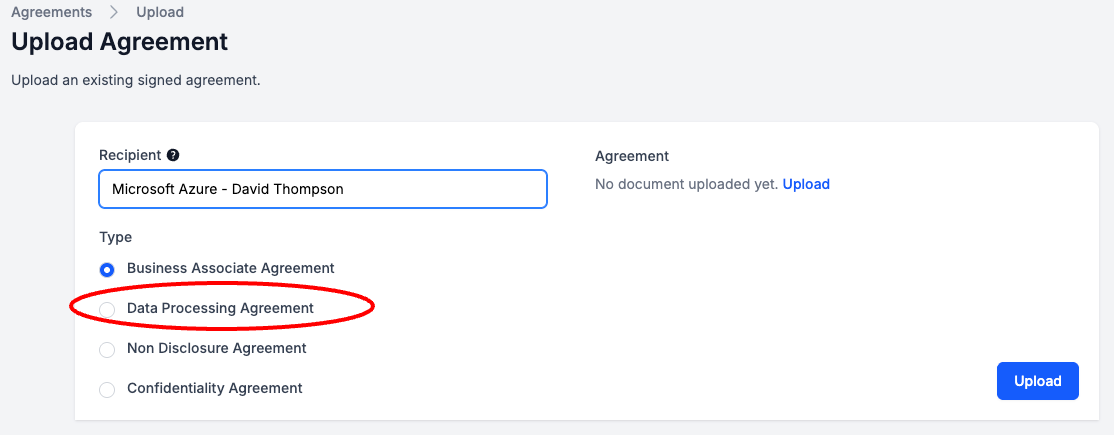
Select Type Business Associate Agreement
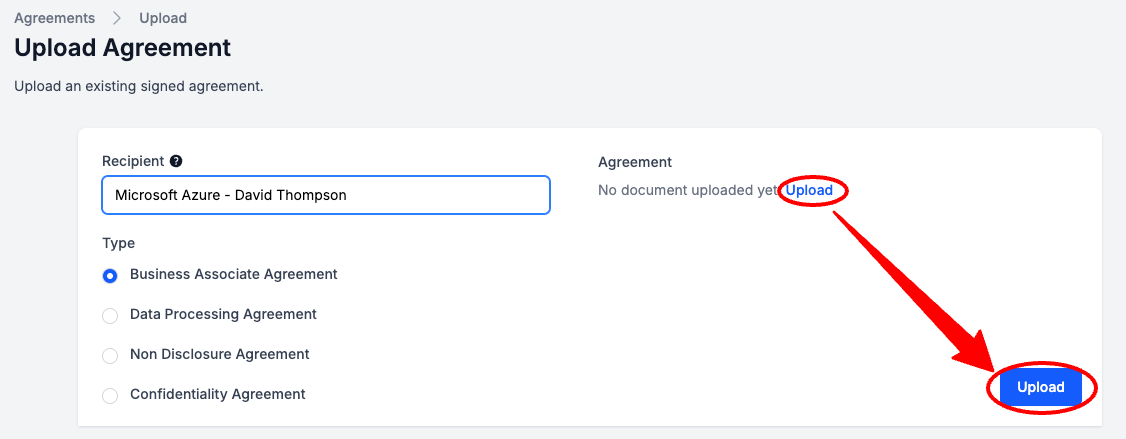
Select Upload > Upload your signed DPA > Select Upload
Retrieving DPAs from 3rd Party Software Vendors
Microsoft
In many cases, the DPA is automatically included with the subscription when you purchase it directly from Microsoft, and the step is to simply accept it in one of the portals mentioned above.
- Downloadable DPA: https://www.microsoft.com/licensing/docs/view/Microsoft-Products-and-Services-Data-Protection-Addendum-DPA
AWS
- Info Page: https://docs.aws.amazon.com/whitepapers/latest/navigating-gdpr-compliance/aws-data-processing-addendum-dpa.html
- Downloadable DPA: https://d1.awsstatic.com/legal/aws-dpa/aws-dpa.pdf
Google
Other 3rd Party Software Vendors
Other software vendors may have a pre-signed DPA, or you'll need to work through their support team to get access to a DPA.
How to Send a DPA
From your Dashboard, Navigate to the Third Parties tab > Select Agreements
Select New Agreement > Select Template

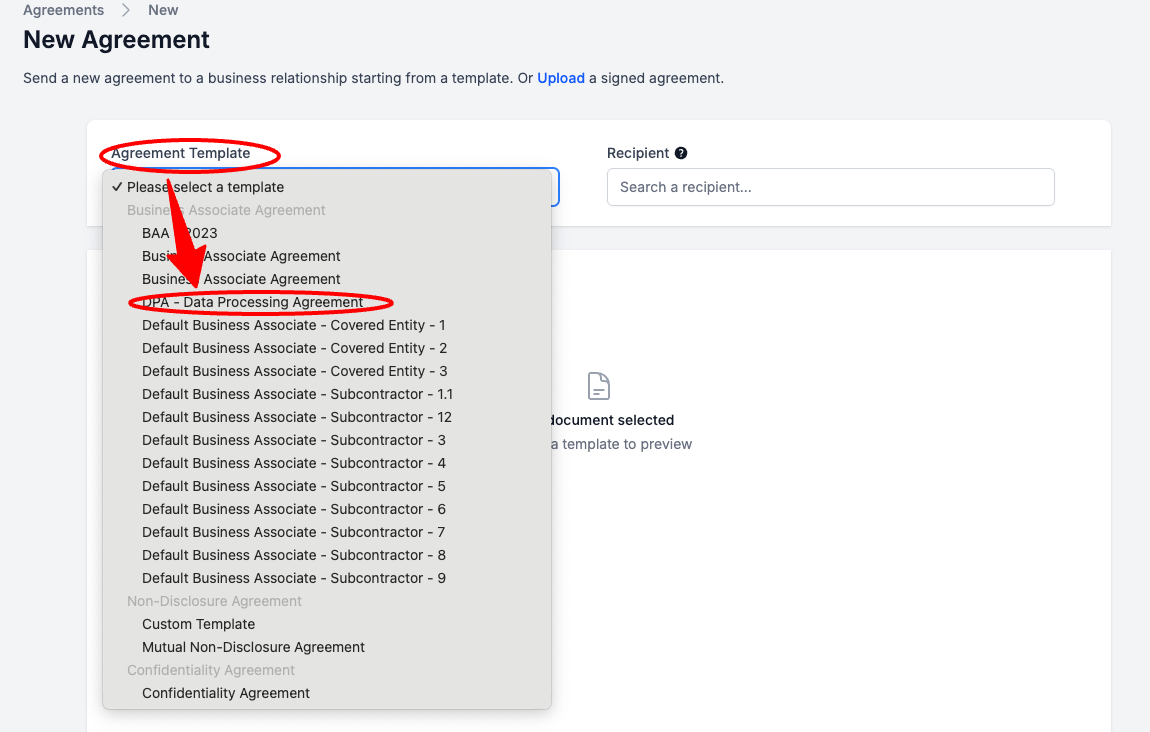
Select the Agreement Template Dropdown > Select your DPA Template
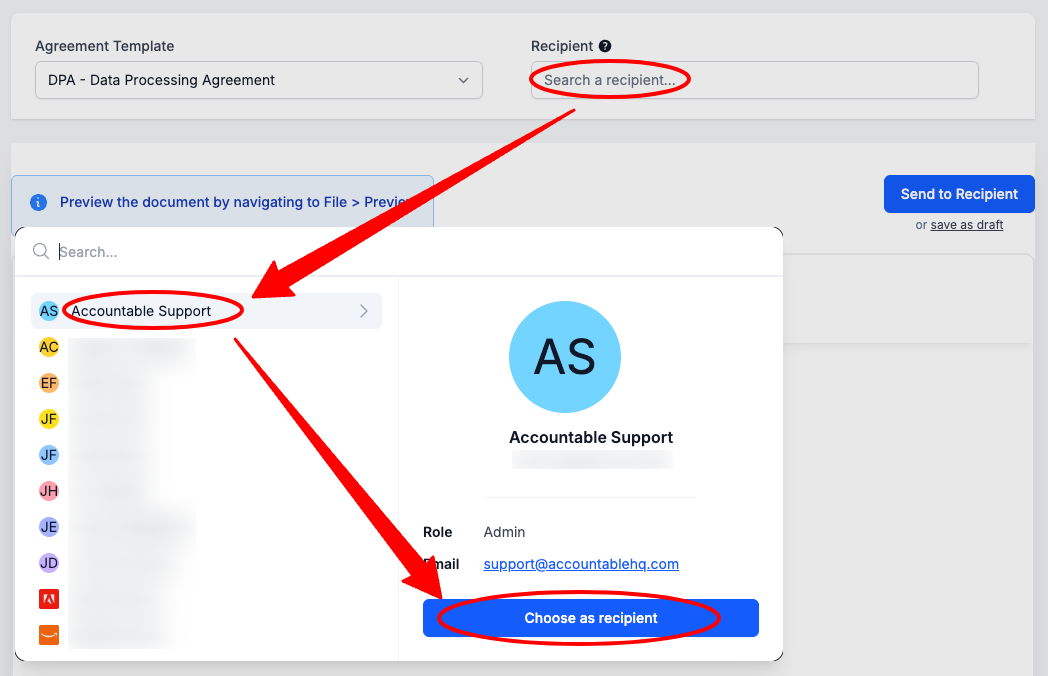
Select the Recipient Dropdown > Select your Third Party recipient > Select Choose as Recipient
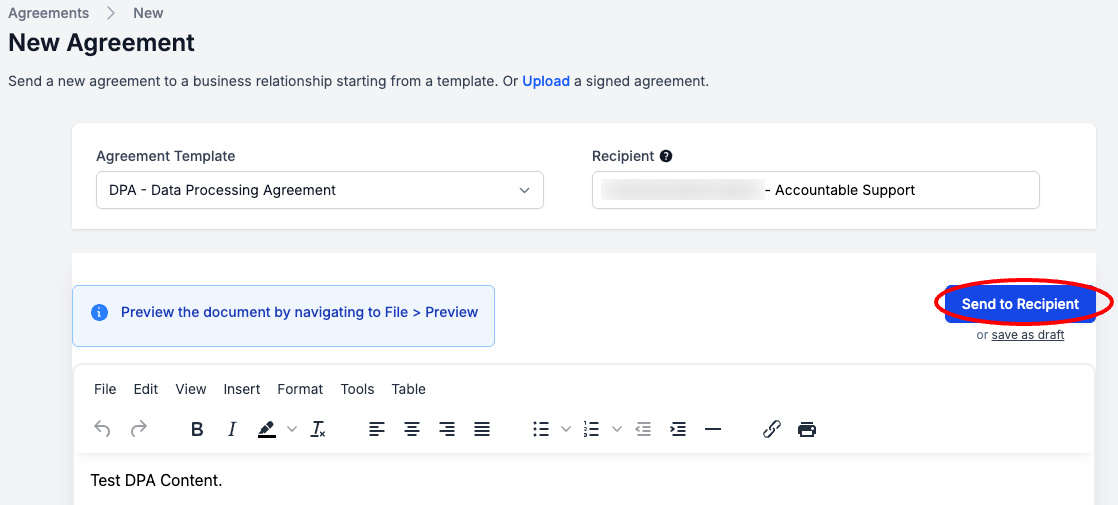
Select Send to Recipient
REMINDER: This is a recurring element of GDPR Compliance. You need to send DPAs for signature to each of your Third Parties and receive and store those signed DPAs every 12 months.
Updated 6 months ago