
(Partially Covered) Setup Data Inventory & Mapping
GDPR Requires documentation of your Data Inventory. This generally looks like at minimum a list of your Data Inventory with key information documented about each system and device. However, GDPR best practice is to take this Inventory a list a step further by visually mapping how systems and devices interact and share personal data.
Accountable does not support Inventory Mapping.
The following is how to create a Data Inventory List.
Steps
- Add your Inventory
Add your Inventory
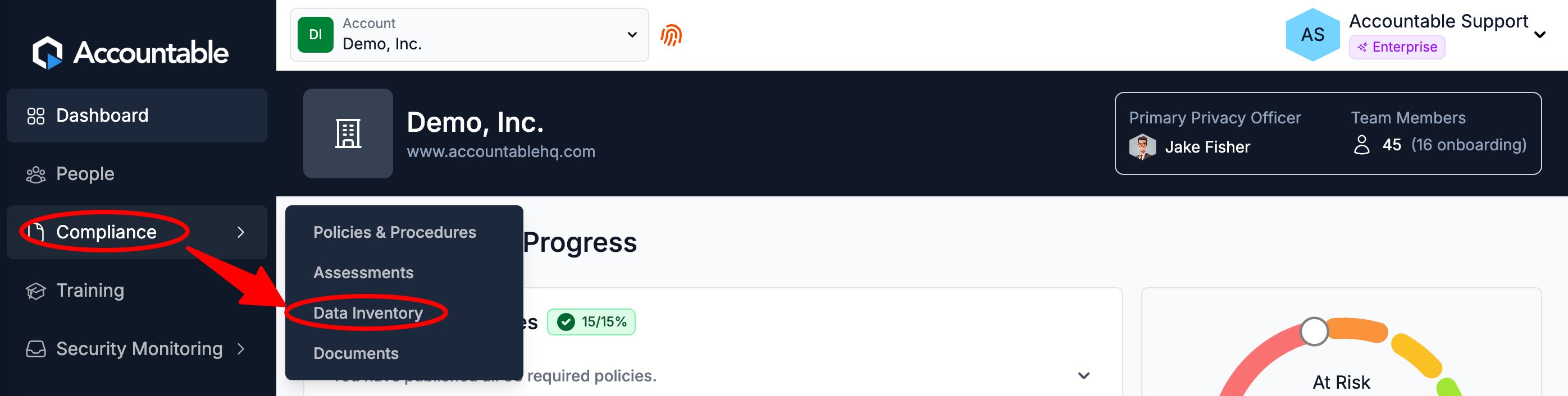
From your Dashboard, hover over the Compliance Tab > Select Data Inventory
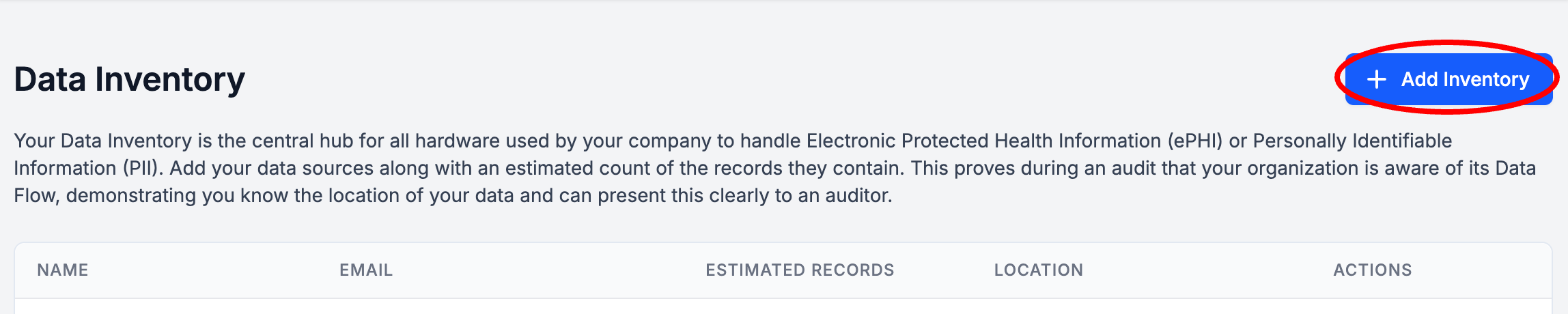
Select Add Inventory
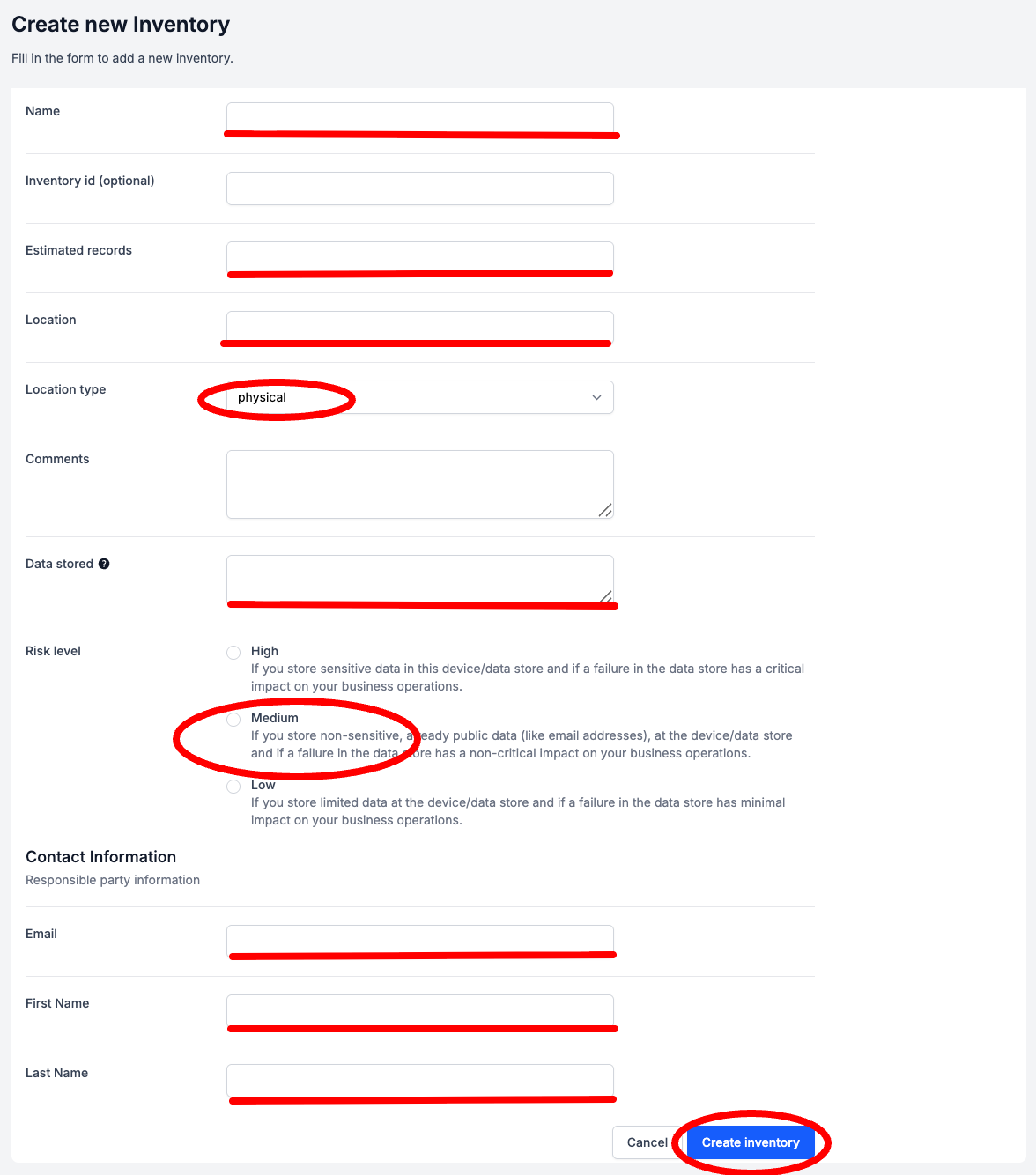
Enter Data Inventory Details (see breakdown below) > Select Create Inventory
The purpose of the Data Inventory section is to document what Inventory your organization has, and what it has access to. In the event of a data breach, this will help you quickly and specifically identify the depth and breadth of the issue to ensure that you respond appropriately.
- Name the Inventory (example: "Desktop Computer" or "Filing Cabinet")
- Optionally, add an Inventory ID
- Enter the Estimated Records count that this Inventory has access to (example: "1,000")
- Enter the Location of this inventory (example: "Office" or "Home")
- Select the Location Type
- Physical: this includes hard copies of patient records, medical charts, computers & laptops, hard drives & USB sticks, backup tapes, printers, scanners, fax machines, and medical equipment with internal storage
- Digital: locations where ePHI is stored, including on-premises servers, cloud storage services, databases, electronic Health Record (EHR) systems, billing softwares, and any other applications that process ePHI
- Add Comments
- What personal data is collected?
- Who has access to it?
- Where it is stored?
- What systems, vendors, and APIs touch the data?
- How data flows between systems?
- Enter the Data Stored in a comma separated list
- List out the specific Personal Data that this inventory has access to
-
Personal Data Definition under GDPR. "Personal data are any information which are related to an identified or identifiable natural person."
-
- List out the specific Personal Data that this inventory has access to
- Select the Risk Level
- Enter the Contact Information for the person that is accountable for this Inventory. Enter their...
- First Name
- Last Name
Updated 6 months ago