
How to Create & Assign Smart Tags
Tags help you save time in managing employee training and policy reviewing by allowing you to make changes to the one Smart Tag assigned to 100 users, instead of having to edit 100 users.
Steps
View Existing Tags
From the Dashboard, Select People in the left sidebar

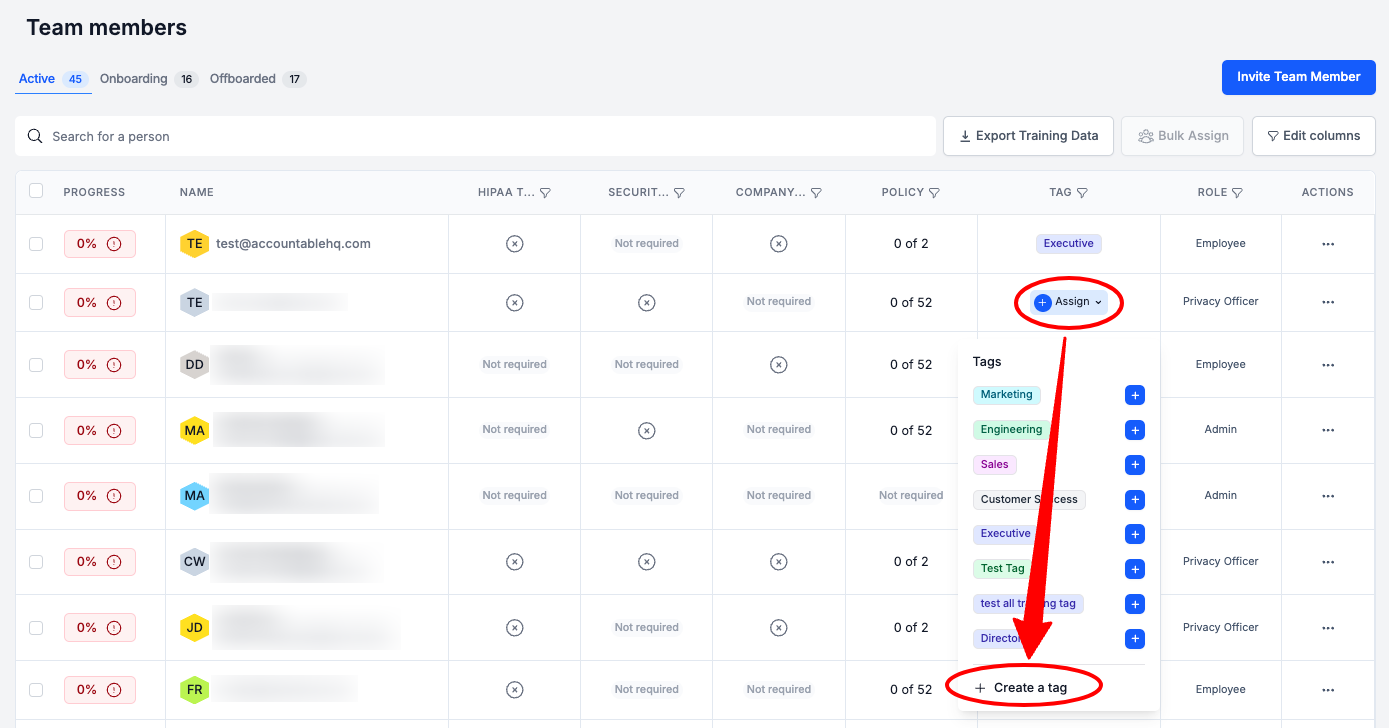
In the Team Members table, in the Tag column, Select Assign > Select Create a Tag
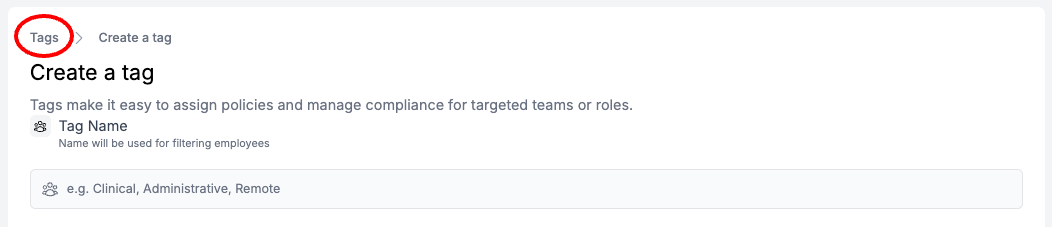
Select Tags
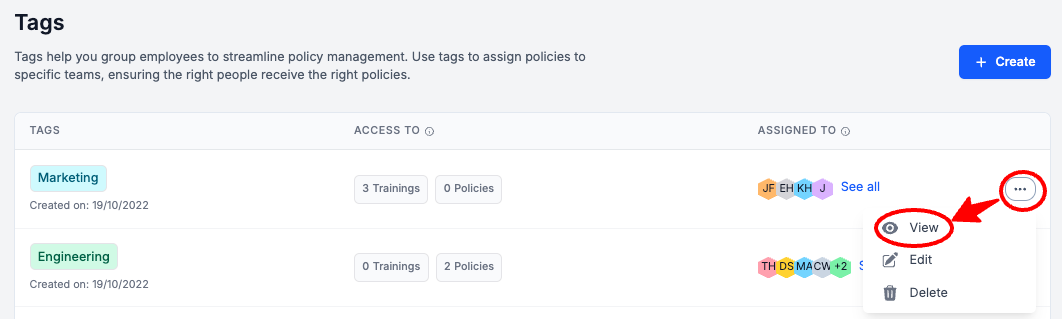
To the right of a Tag, Select the three dots > Select View
Review the Tag's Setup
Create a Tag
Via the People Table
From the Dashboard, Select People in the left sidebar
In the Team Members table, in the Tag column, Select Assign > Select Create a Tag
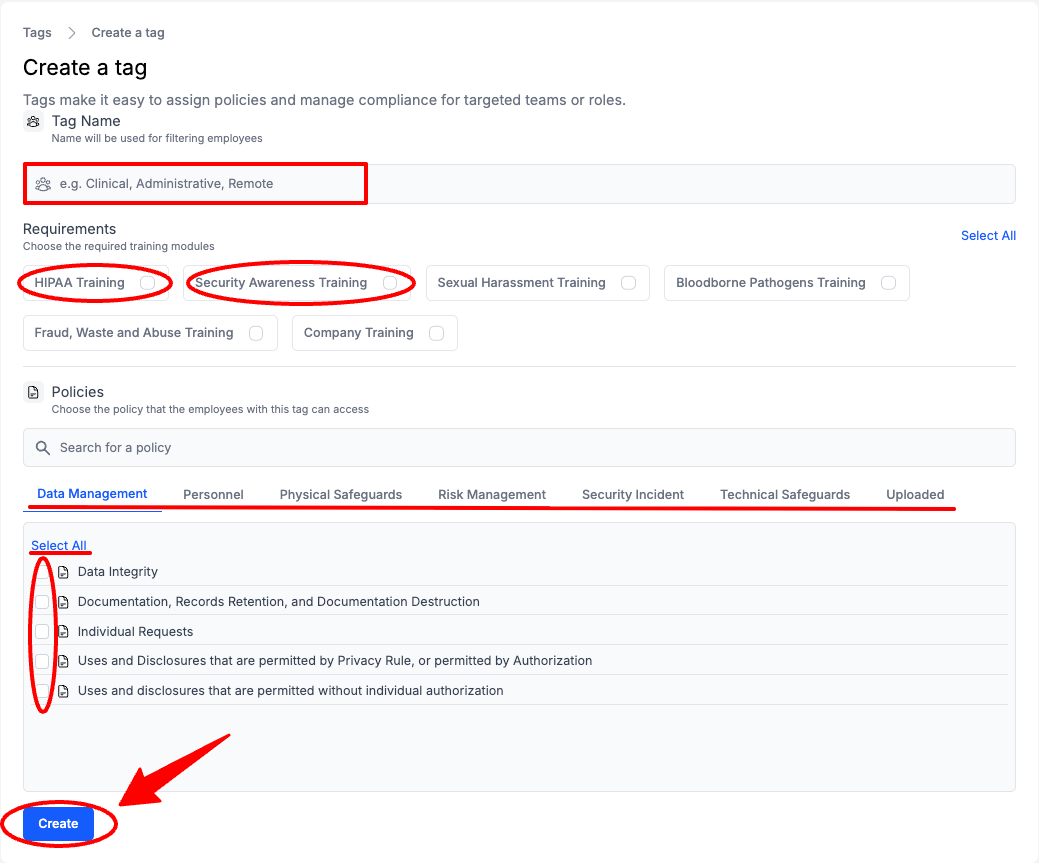
Enter Tag Information (see breakdown below) > Select Create
- Enter a Tag Name Example: HIPAA Requirements
- Select the Required Trainings for this Tag Example: HIPAA Training and Security Awareness Training
-
Our HIPAA Training and Security Awareness Training Courses are required for all Team Members.
-
- Select the Required Policies to Review for this Tag Example: Select All in each section
- You can Select All for each Policy Category, or select Policies individually
-
All of your HIPAA required policies must be reviewed annually by all Team Members.
Via the Invite Team Member Popup
From the Dashboard, Select People in the left sidebar
Select Invite Team Member

Enter Tag Information (see breakdown below) > Select Create
- Enter a Tag Name Example: HIPAA Requirements
- Select the Required Trainings for this Tag Example: HIPAA Training and Security Awareness Training
-
Our HIPAA Training and Security Awareness Training Courses are required for all Team Members.
-
- Select the Required Policies to Review for this Tag Example: Select All in each section
- You can Select All for each Policy Category, or select Policies individually
-
All of your HIPAA required policies must be reviewed annually by all Team Members.
Assign a Tag
From the Dashboard, Select People in the left sidebar
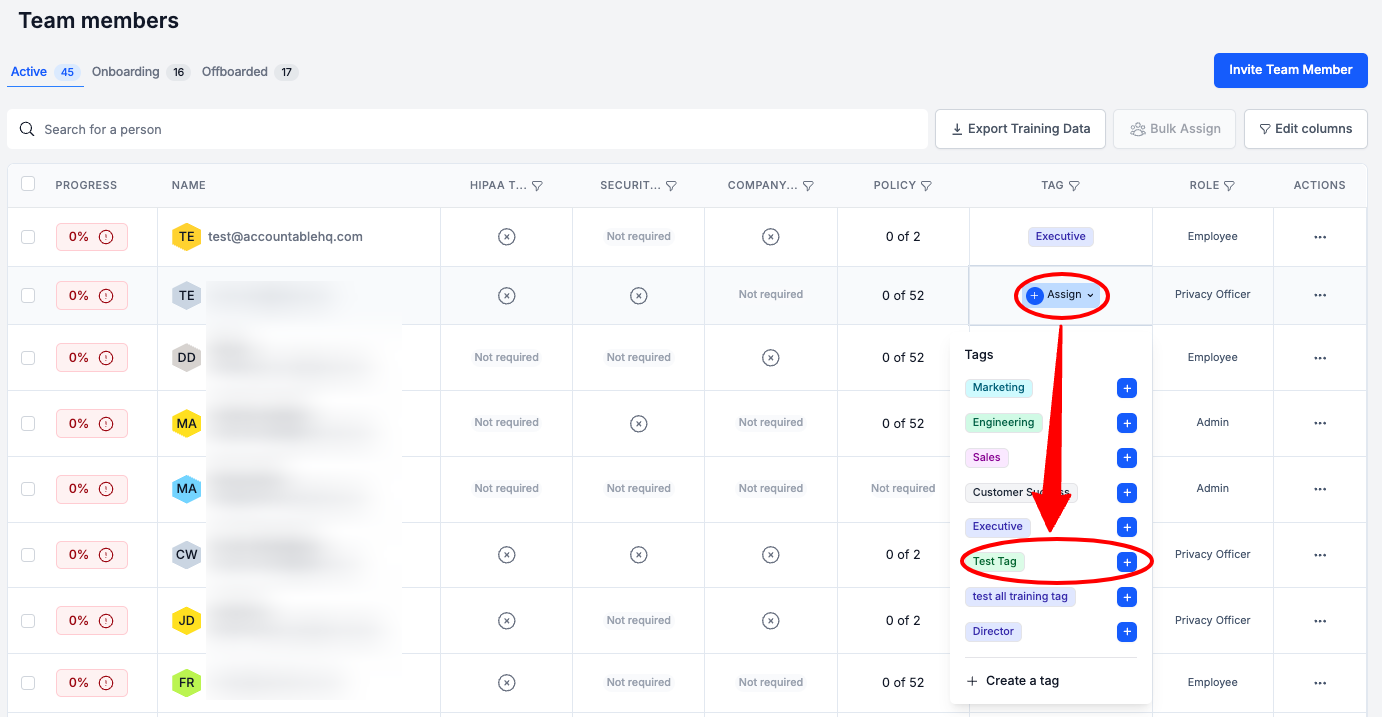
In the Team Members table, in the Tag column, Select Assign > Select a Tag
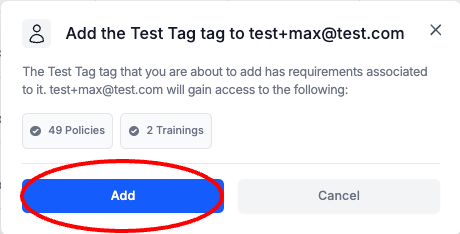
Select Add
Edit Existing Tags
From the Dashboard, Select People in the left sidebar
In the Team Members table, in the Tag column, Select Assign > Select Create a Tag
Select Tags
To the right of a Tag, Select the three dots > Select View
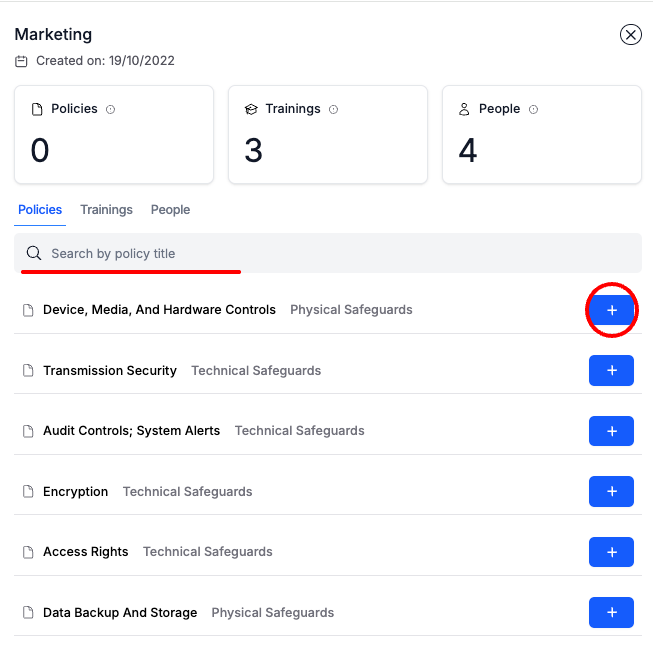
Add or Remove a Policy(s)
Optionally search for Policies. Select the + or - Icon
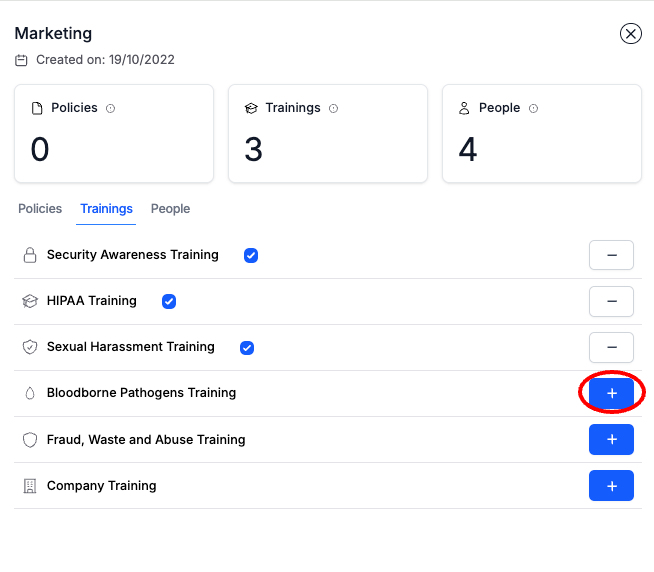
Add or Remove a Training(s)
Select the + or - Icon
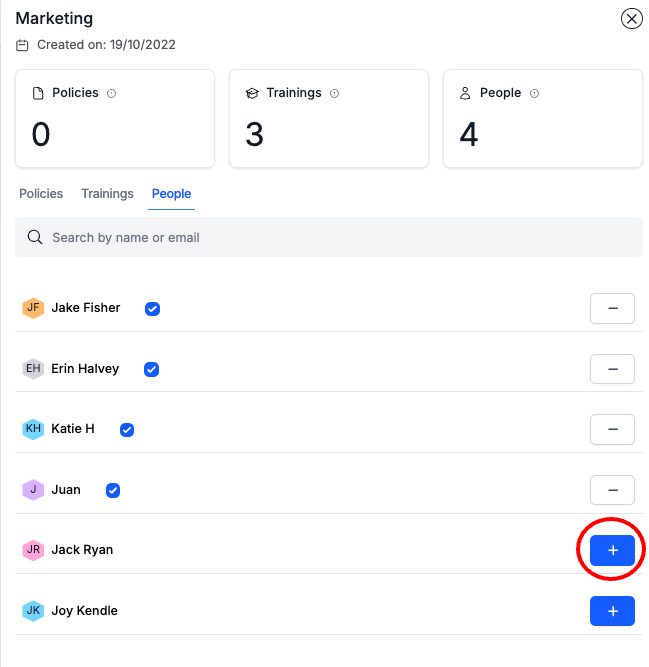
Add or Remove a Team Member(s)
Select the + or - Icon
Next Steps
Updated 10 months ago